
This Blueprint generates a PHP snippet that registers a Custom Taxonomy using WordPress’s `register_taxonomy()` API.
Use it when you want to organize content with custom categories or tags — for example Project Type, Book Author, Genre, or Difficulty — and attach them to one or more post types (including custom post types).
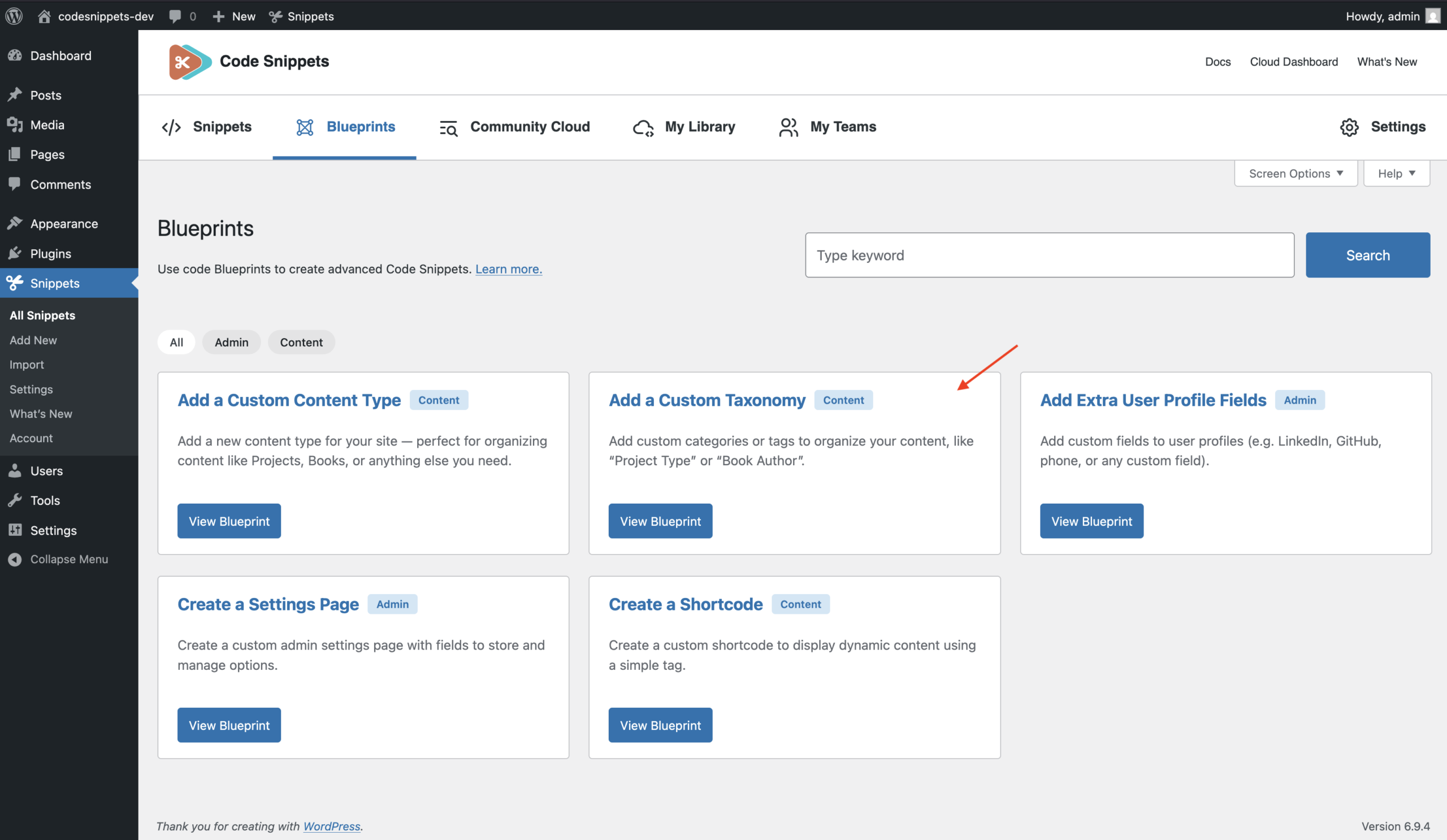
Before You Start
Try it immediately
This Blueprint includes a ready-to-use example configuration for a taxonomy called Project Type.
If you generate the code and save it as a snippet without changing any fields, the plugin will register a working “Project Type” taxonomy that you can immediately test in WordPress.
You can keep this default setup to see how custom taxonomies work, or edit the fields in the Blueprint form to create your own taxonomy with different names, settings, and post type associations.
Post types first
If your taxonomy will be attached to a custom post type, make sure you know the post type key used by that content type. You will enter this key in “Link To Post Type(s)” so WordPress knows which content types should use the taxonomy.
Example post type keys: post, page, project, portfolio
Notes:
The taxonomy snippet automatically attaches itself to the specified post types. You do not need to modify the custom post type snippet.
If the taxonomy does not appear in the editor for your content type, check that the post type key entered in “Link To Post Type(s)” exactly matches the key used when registering the post type.
Configuration
General
Basic settings that define the identity of the taxonomy and which content types it applies to.
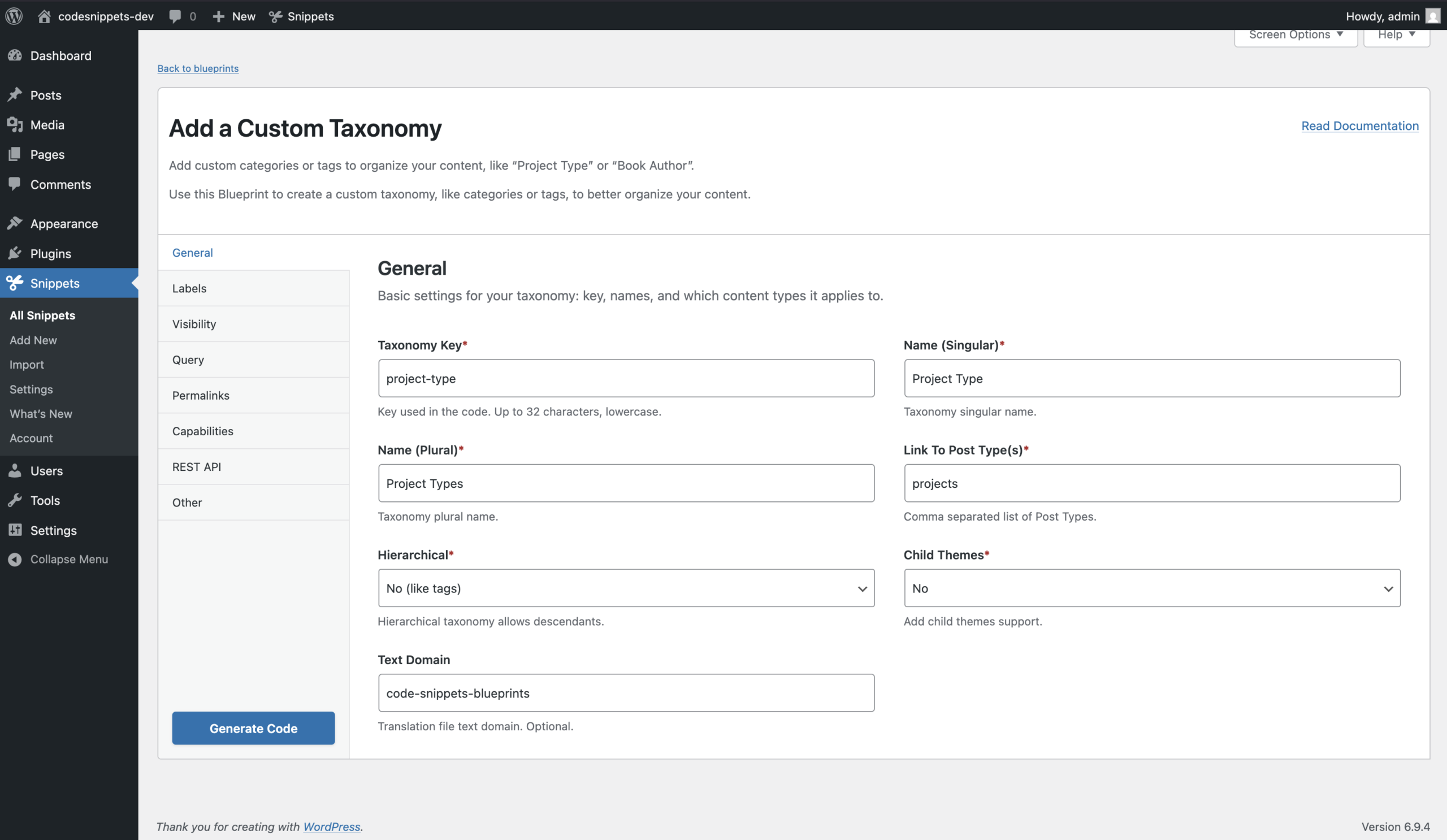
Taxonomy Key (required)
The internal identifier used by WordPress in code, database records, and URLs. Example: project-type
A WordPress key must follow these rules:
- Lowercase letters only
- Numbers allowed
- Underscores (_) and hyphens (-) allowed
- Maximum length: 32 characters
- No spaces or special characters
It also becomes the default REST API base and query variable unless overridden.
Name (Singular) (required)
The singular human-readable name of the taxonomy. Example: Project Type
Name (Plural) (required)
The plural human-readable name of the taxonomy. Example: Project Types
Link To Post Type(s) (required)
A comma-separated list of post type keys that this taxonomy should apply to. These post types will display the taxonomy selector in their editor screens. Examples: post, page, project, portfolio
Rules
- At least one post type is required
- Each value must be a valid WordPress key
Hierarchical (required)
Controls whether taxonomy terms can have parent/child relationships.
Yes — like Categories
- Terms can be nested
- Example: Design → Web Design
No — like Tags
- Terms exist in a flat structure
- No hierarchy
Child Theme Support (required)
Determines whether the generated code supports child theme template overrides. This option helps ensure taxonomy templates can be properly handled when themes or child themes define custom template files.
Text Domain (optional)
Used for translating labels. When provided, generated labels are wrapped in WordPress translation functions. Example: my-plugin
Rules:
• Letters, numbers, underscores, or hyphens only
Labels
Customize the text labels used in the WordPress admin interface. All fields are optional.
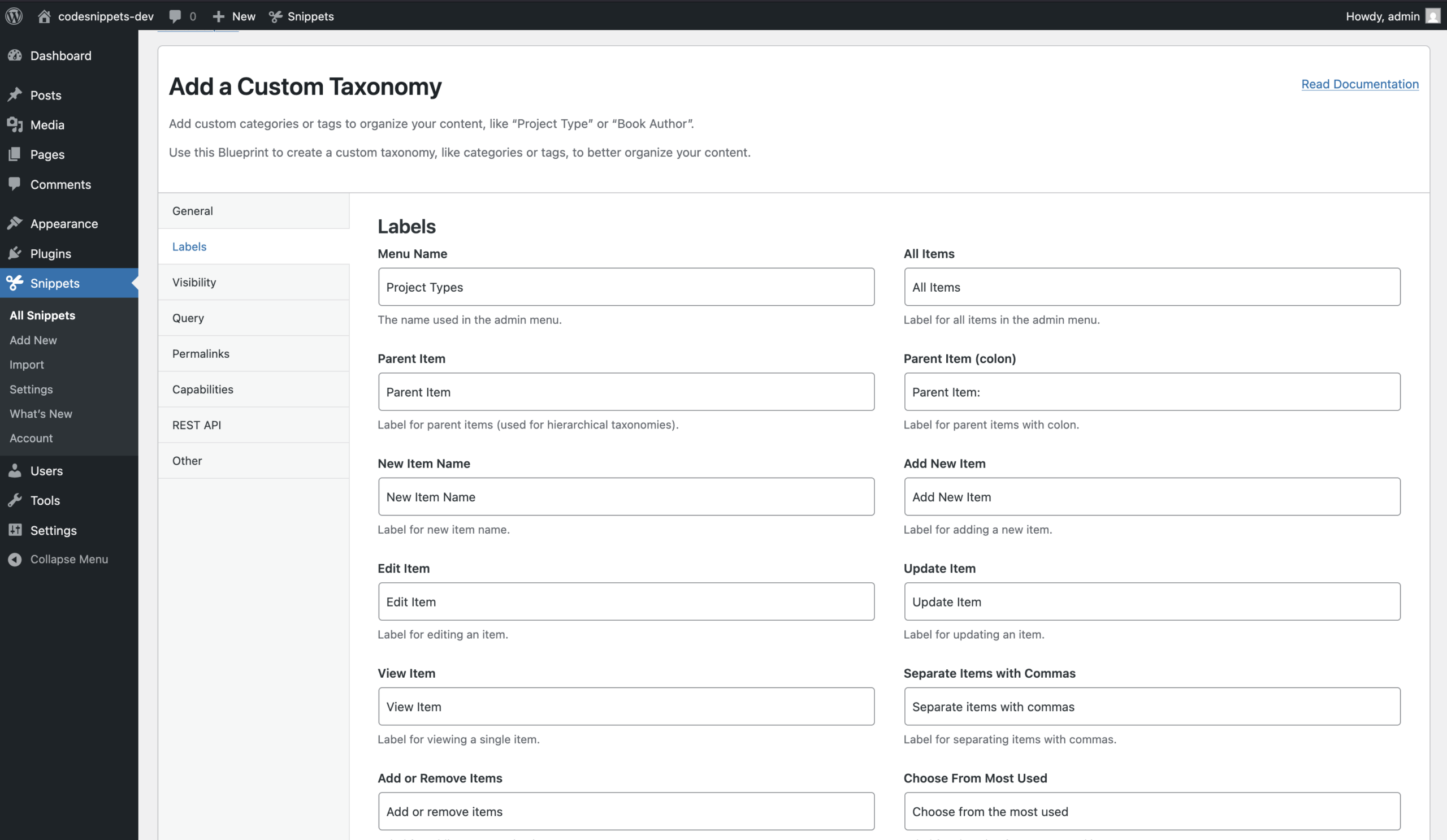
Menu and List Labels
- Menu Name
- All Items
- Parent Item
- Parent Item (colon)
Item Action Labels
- New Item Name
- Add New Item
- Edit Item
- Update Item
- View Item
Management and Filter Labels
- Separate Items with Commas
- Add or Remove Items
- Choose From Most Used
- Popular Items
Search and Empty-State Labels
- Search Items
- Not Found
- No Items
Screen Reader Labels
- Items List
- Items List Navigation
Visibility
Control where this taxonomy appears in WordPress.
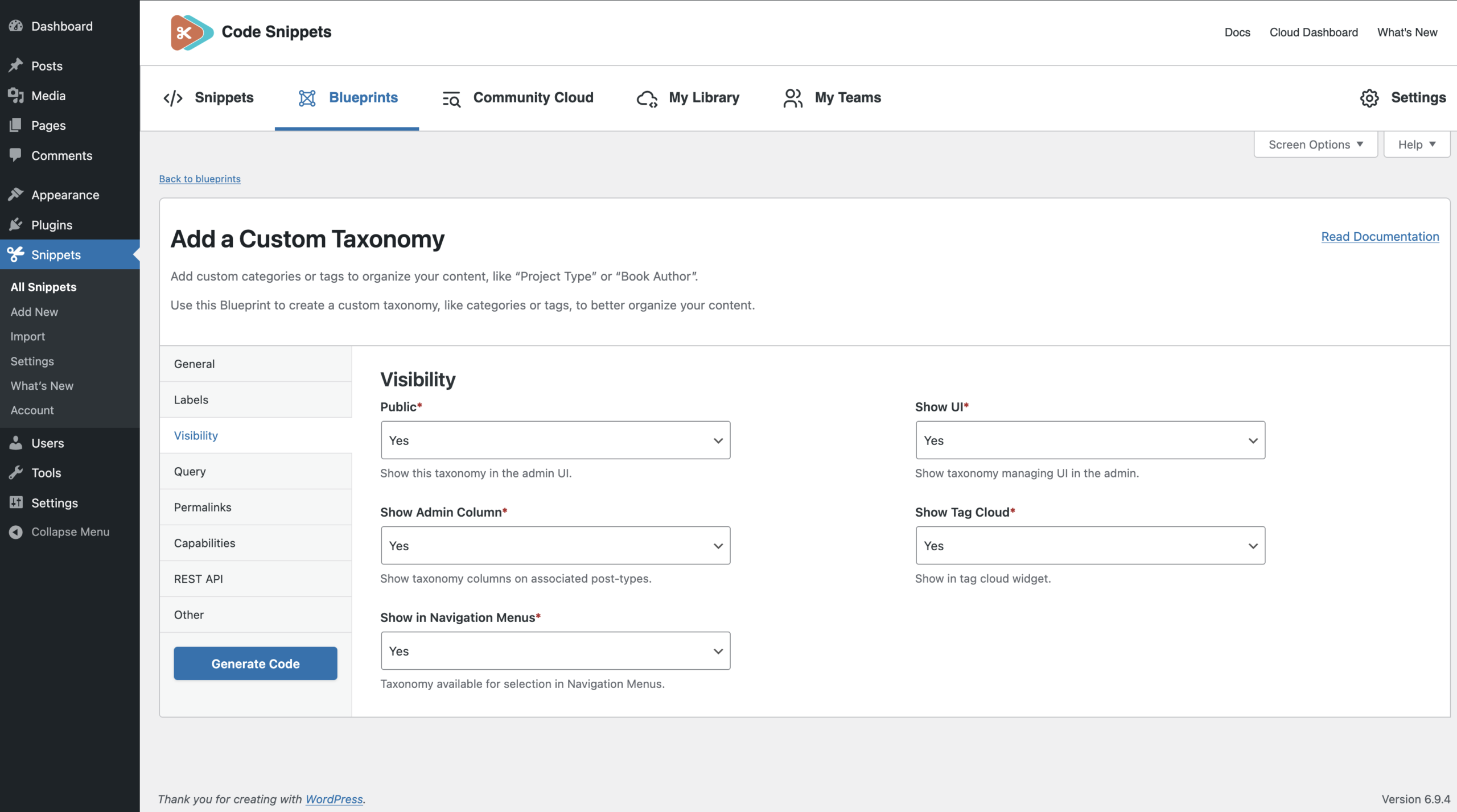
Public (required)
A high-level visibility setting used by WordPress to determine default behavior for the taxonomy.
Show UI (required)
Determines whether WordPress displays the taxonomy management interface in the admin.
Show Admin Column (required)
Controls whether the taxonomy appears as a column in the post list table of associated post types.
Show Tag Cloud (required)
Determines whether the taxonomy can appear in the WordPress Tag Cloud widget.
Show in Navigation Menus (required)
Controls whether taxonomy terms can be added to navigation menus.
Query
Controls how WordPress uses this taxonomy in queries.
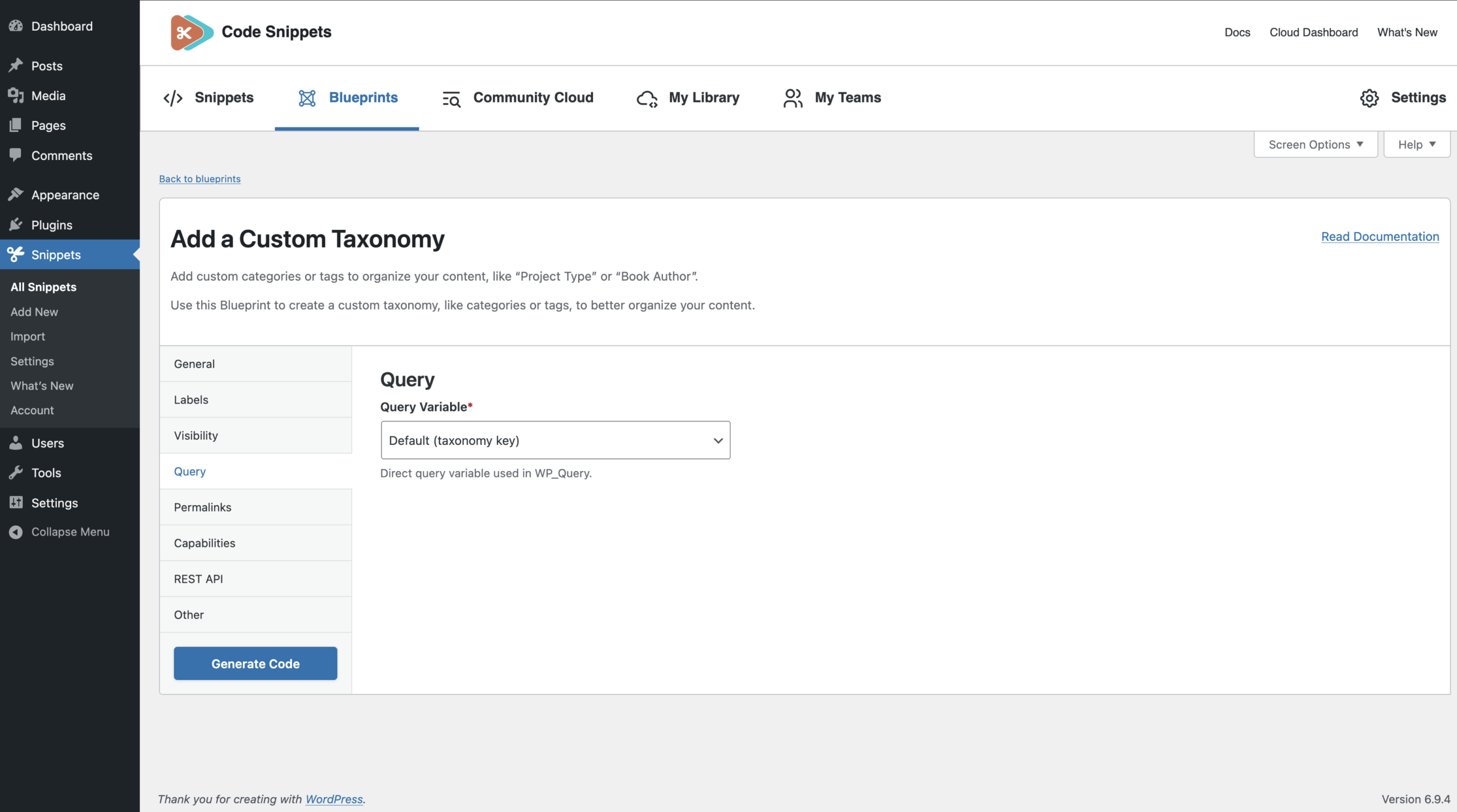
Query Variable (required)
Defines how WordPress can query this taxonomy.
Options:
- Default (taxonomy key)
- Custom query variable
- Disabled
Example query: ?project-type=design
Custom Query (optional)
Used when “Query Variable” is set to “Custom”. Example: project_type
Rules
Must follow WordPress key rules:
- Lowercase letters only
- Numbers allowed
- Underscores (_) and hyphens (-) allowed
- Maximum length: 32 characters
- No spaces or special characters
Permalinks
Controls the URL structure for taxonomy term archive pages.
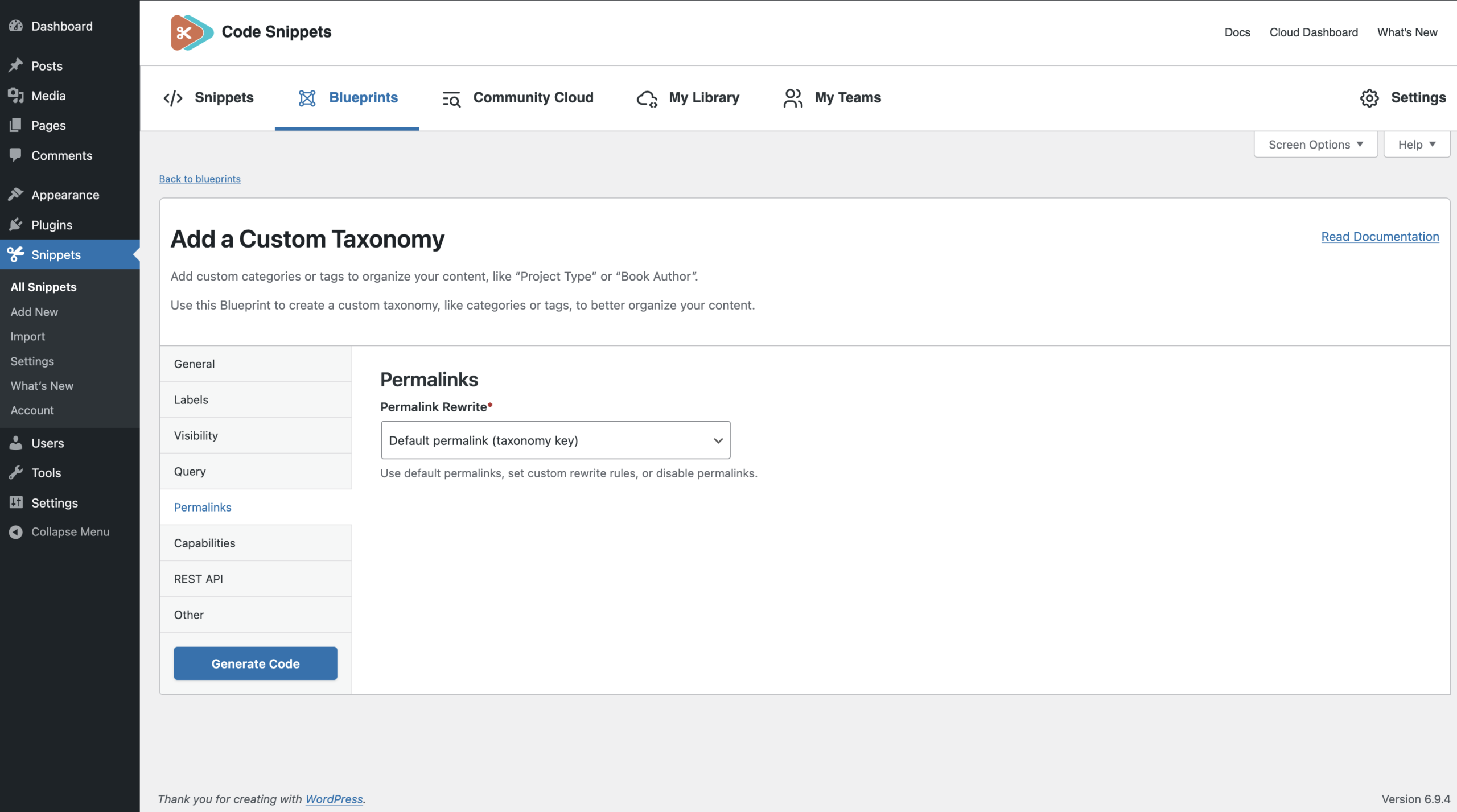
Permalink Rewrite (required)
Defines how WordPress generates taxonomy term URLs. Example default URL: /project-type/design/
Options:
- Default permalink (taxonomy key)
- Custom permalink
- No permalink
URL Slug (optional)
Used when “Custom permalink” is selected. It will produce URLs like: example.com/project-type/design/ Example: project-type
Use URL Front (required)
Controls whether WordPress includes the site’s permalink prefix. Example: /blog/project-type/design/
Hierarchical URL Slug (required)
Determines whether URLs reflect the term hierarchy. Example: /project-type/design/web-design/
Capabilities
Defines who can manage and assign taxonomy terms.
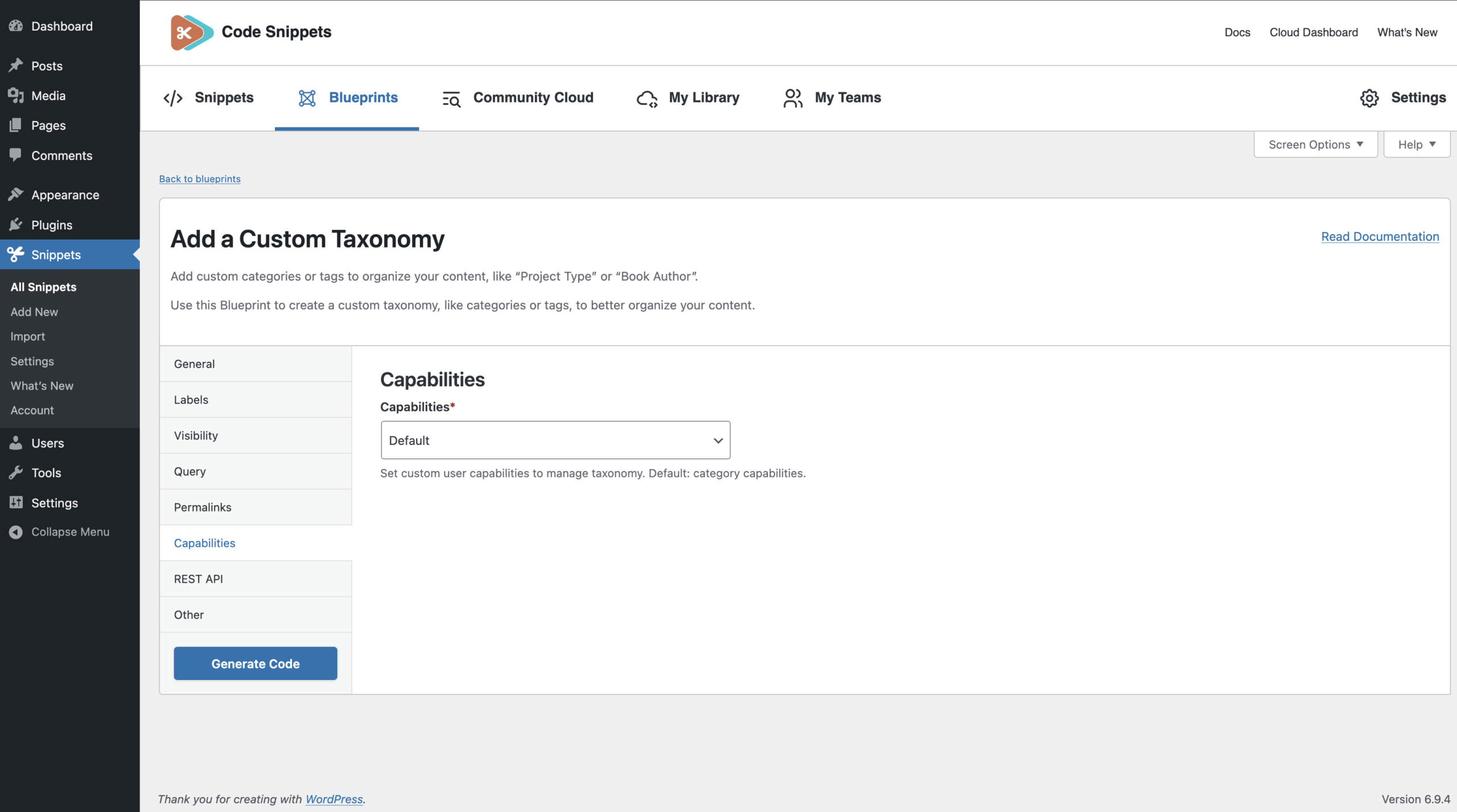
Capabilities Mode (required)
Two options are available:
- Default – WordPress automatically derives capabilities similar to categories.
- Custom capabilities – Define each capability manually.
Custom Capability Fields (optional)
Used only when “Custom capabilities” is selected. Each value must be a valid PHP capability identifier.
Fields include:
- Manage Terms — example: manage_categories
- Edit Terms — example: manage_categories
- Delete Terms — example: manage_categories
- Assign Terms — example: edit_posts
REST API
Controls whether the taxonomy is available through the WordPress REST API.
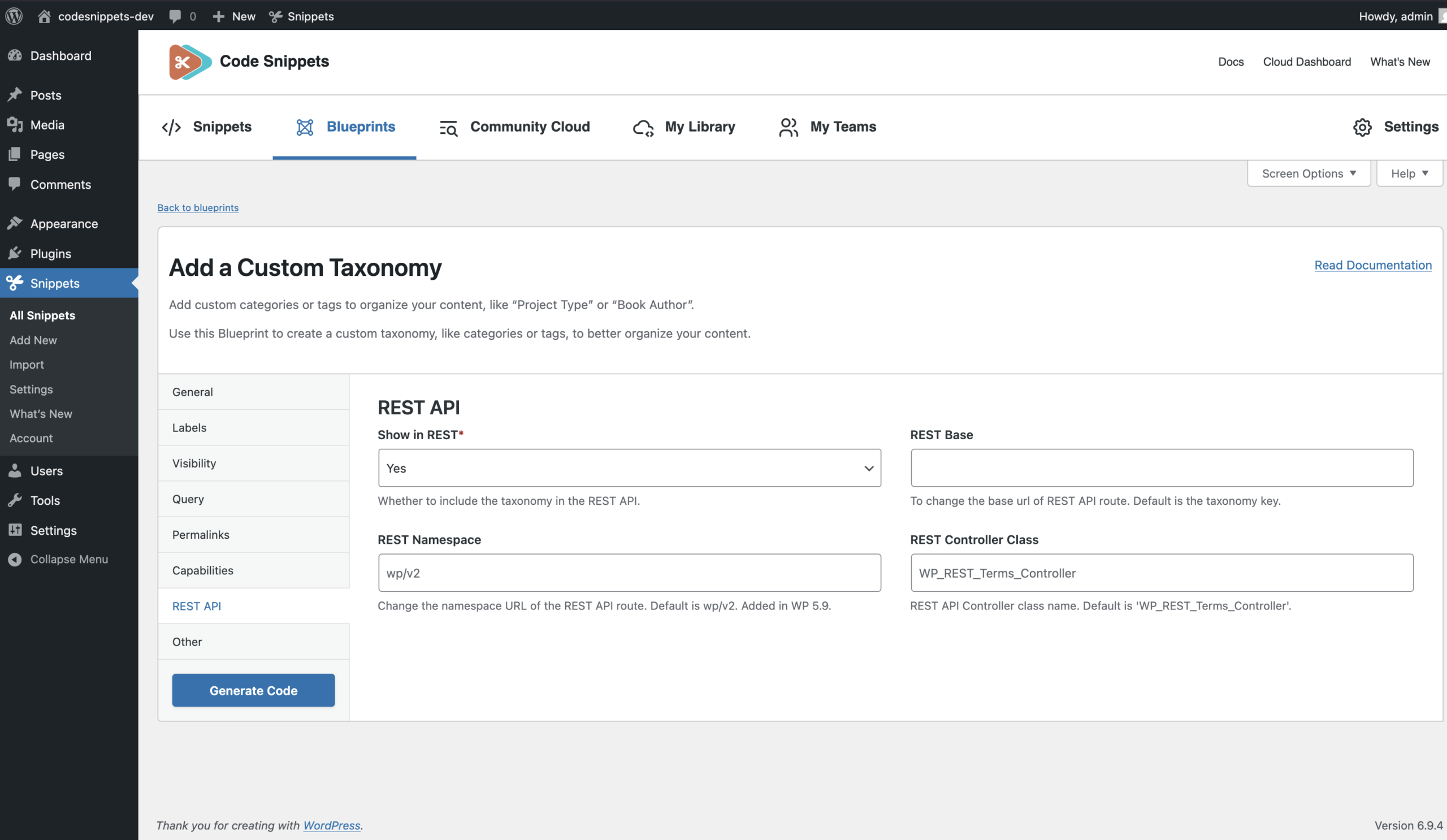
Show in REST (required)
Enable or disable REST API support.
REST Base (optional)
Defines the REST API route base. Example: project-type
REST endpoint: /wp-json/wp/v2/project-type
REST Controller Class (optional)
Defines the controller class used by the REST API. Example: WP_REST_Terms_Controller
Must be a valid PHP class name.
REST Namespace
The REST Namespace allows you to customize the namespace portion of the REST API URL for your taxonomy. Only set this if you have a specific reason to use a custom namespace. By default, WordPress uses wp/v2, resulting in endpoints like: /wp-json/wp/v2/your-taxonomy/
Other
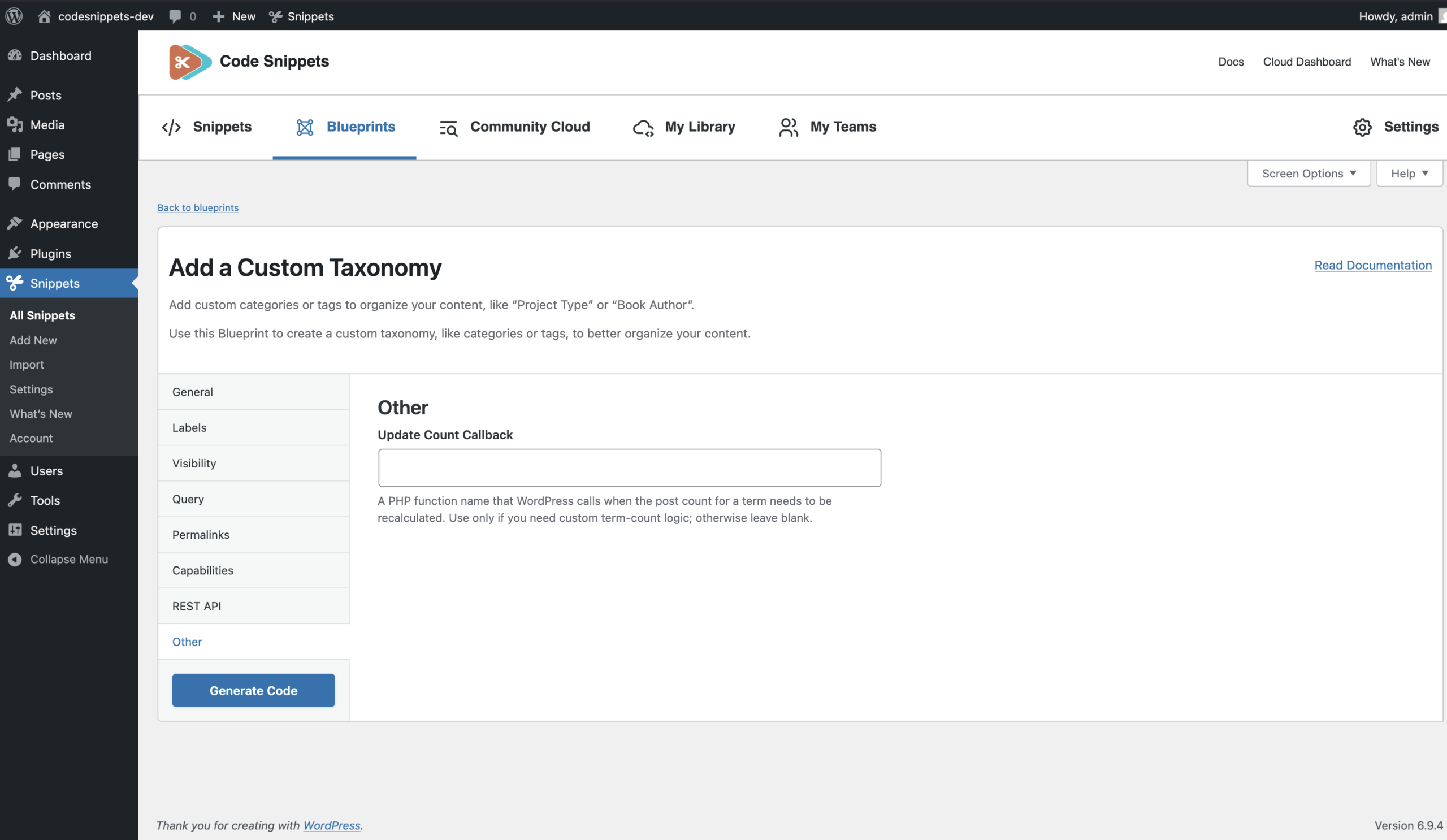
Update Count Callback (optional)
A PHP function name that WordPress calls when recalculating the number of posts associated with each taxonomy term. Use this only if you need custom logic for updating term counts.
Example: update_project_type_count