
Blueprints help you create powerful WordPress snippets without writing code by hand. Instead of starting from a blank editor, you select a Blueprint (a pre-built template), fill in a guided form, and let the plugin generate the code for you.
When you’re happy with the result, you can save it as a normal snippet.
Where to find Blueprints
In the WordPress admin:
- Go to Snippets.
- Open the Blueprints tab.
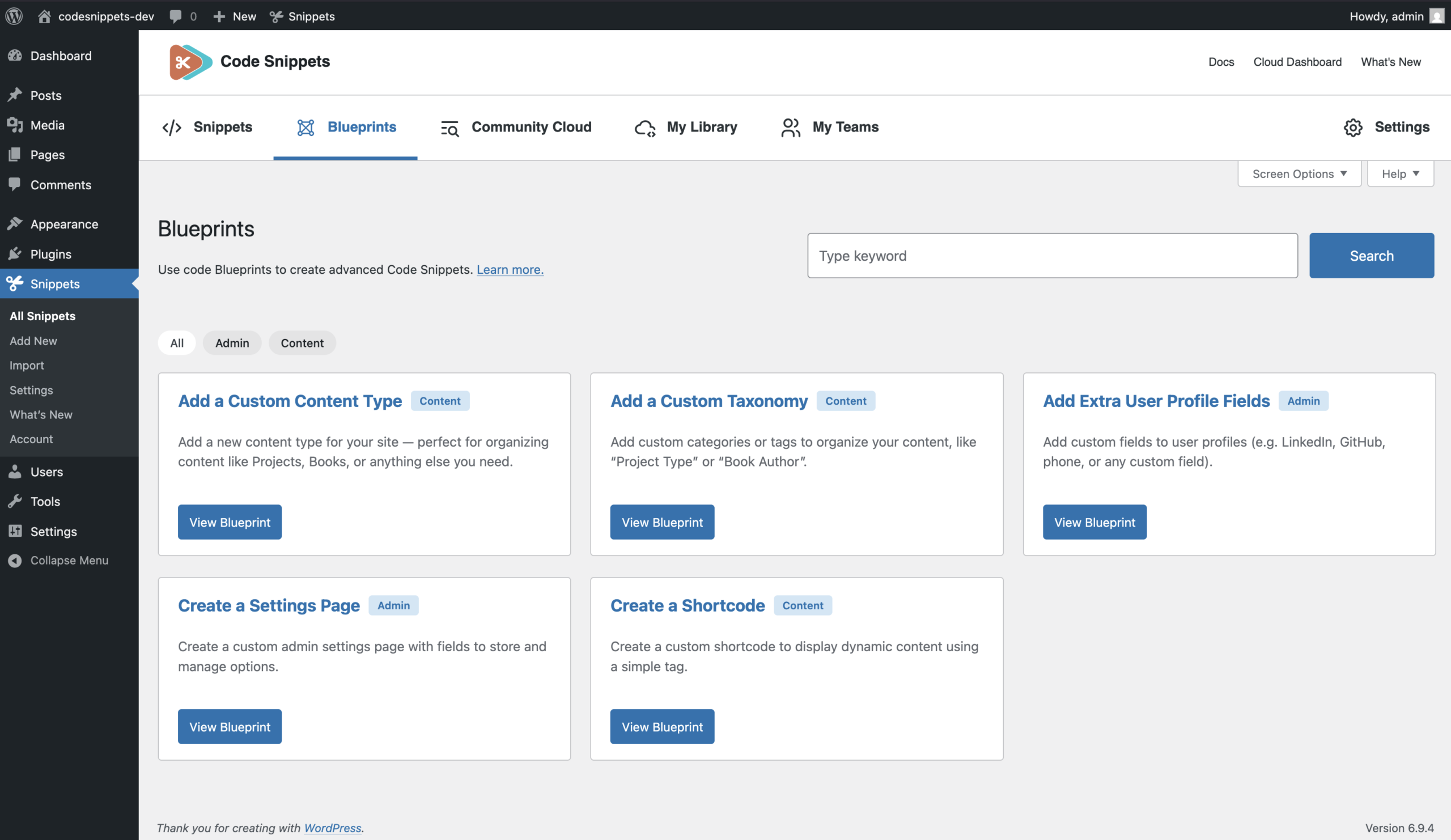
- You will see a gallery of available Blueprints. Click one to get started.
How the Blueprint flow works
1. Choose a Blueprint
From the Blueprints screen, select the template that matches what you want to build.
Each Blueprint includes a short title and description to help you understand its purpose.
2. Fill in the form
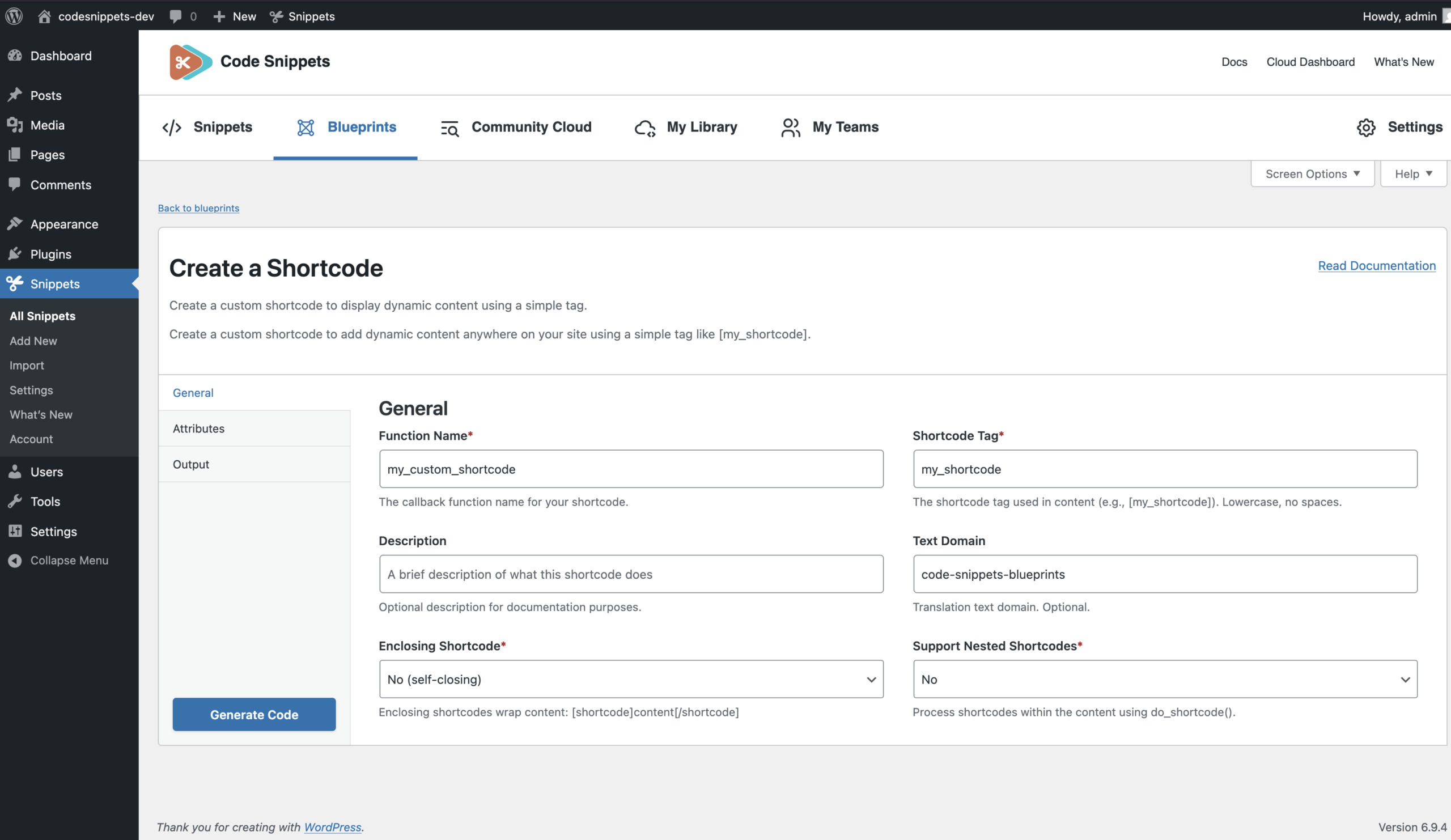
Every Blueprint includes a form divided into sections (for example General, Attributes or Output).
- Required fields are clearly marked.
- Each field includes a short description and often a placeholder example.
- Some fields only appear when they are relevant.
You don’t need to know all the underlying WordPress arguments — the Blueprint form translates your choices into the correct PHP configuration.
3. Generate the code
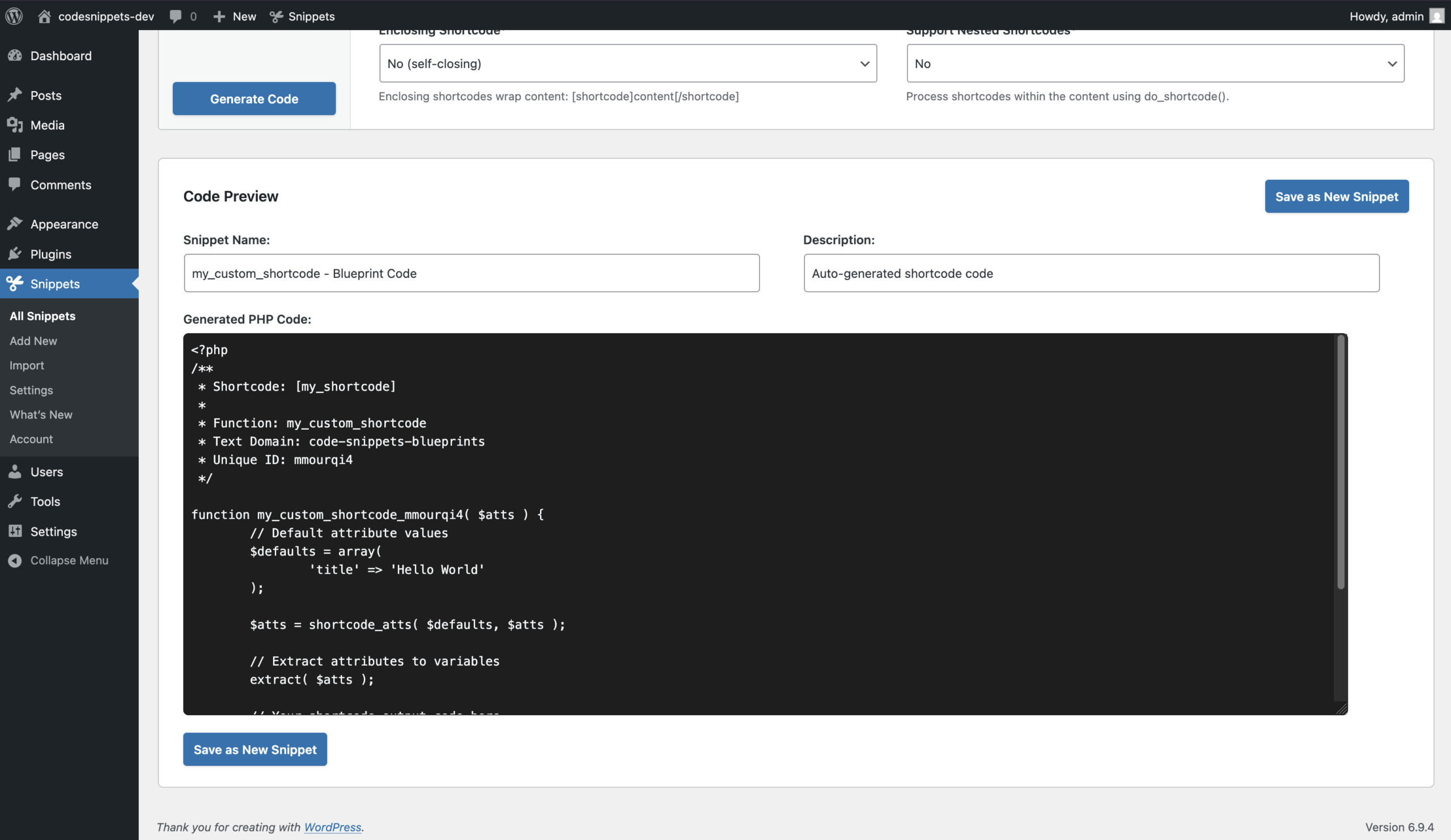
When you’re ready, click Generate Code.
The plugin will:
- Build a snippet based on your form choices.
- Show the result in a code preview so you can review it.
- Keep your form data so you can adjust fields and generate the code again.
You can repeat this step as many times as you like before saving anything.
4. Save as a snippet
Once you’re happy with the generated code:
- Click Save as Snippet.
- Give your snippet a name and optionally a description.
Finally, click Save.
The plugin will create a new snippet using the generated code.
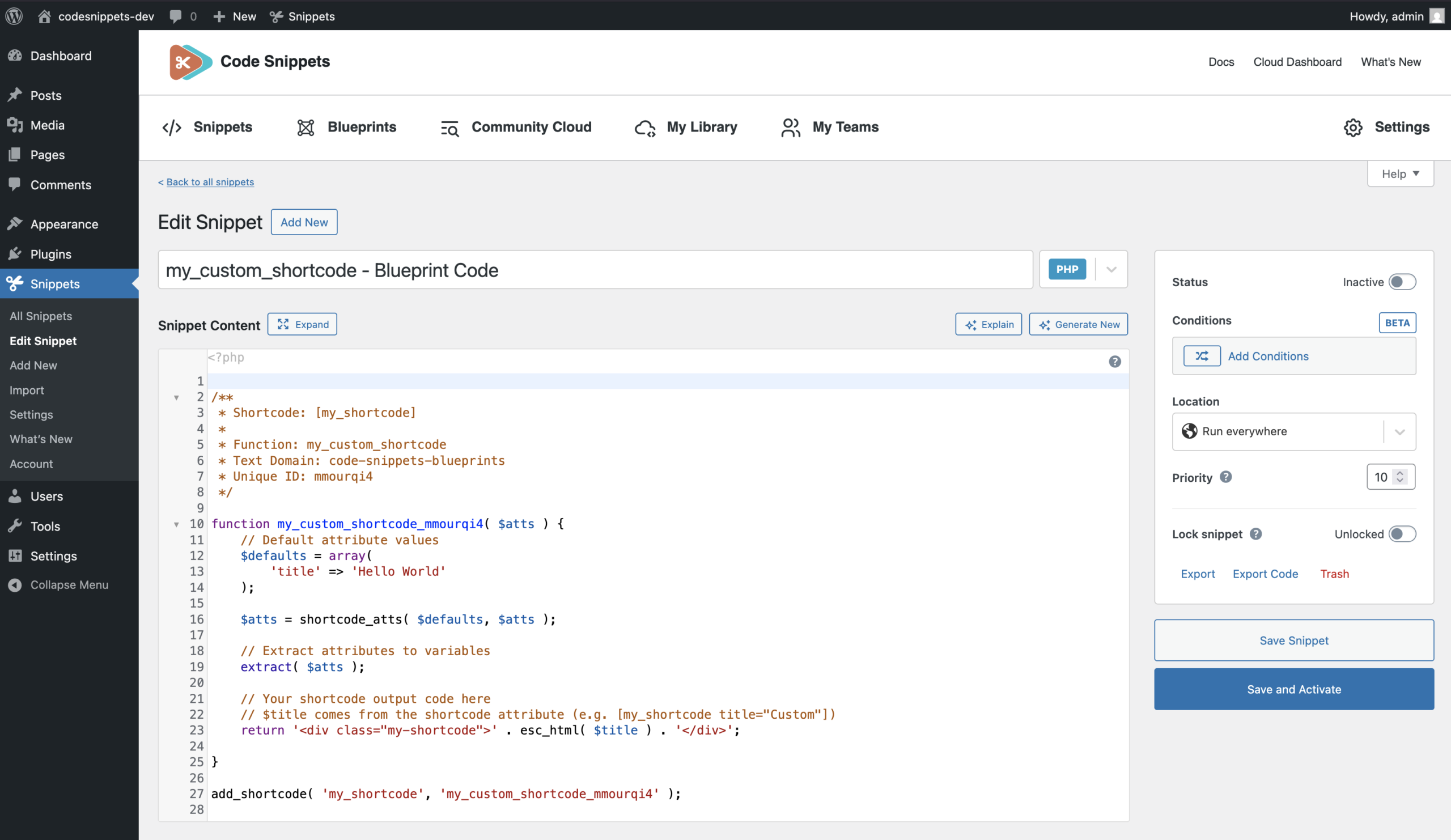
You can then:
- Edit the code like any other snippet
- Change the scope or conditions
- Activate or deactivate it from the Snippets list screen
What Blueprints can create
Each Blueprint focuses on a common WordPress development task.
Add a Custom Content Type
Register a custom post type, such as:
- Projects
- Portfolio
- Events
Add a Custom Taxonomy
Register a taxonomy to organize content, for example:
- Project Type
- Genre
- Difficulty Level
Add Extra User Profile Fields
Add additional profile fields for users, such as:
- GitHub
- Phone number
Create a Settings Page
Create a custom settings page in the WordPress admin, with fields stored as options.
Create a Shortcode
Create a shortcode (for example [my_shortcode]) that outputs custom content in posts, pages, or widgets.
You can use the same Blueprint multiple times with different settings to create multiple snippets.
After saving: how Blueprints and snippets work together
Blueprints are a starting point. They help you generate correct boilerplate code — such as registering post types or taxonomies — without needing to remember every argument.
Once saved, the result is a normal snippet.
It behaves exactly like any other snippet in the plugin.
You remain in full control. At any time, you can open the snippet and modify the code to adjust labels, capabilities, or any advanced configuration that was not exposed in the Blueprint form.