Recurring payments in WooCommerce usually mean an extension, a subscription plugin, or a developer. There’s another route, and it’s a single code snippet.
This one was built by Imran at Web Squadron. So it adds Stripe-powered subscription products, renewal reminders, and content access rules to a store you already have, and it installs through our free Code Snippets plugin.
One thing before you start. This is custom code handling payments and permissions, so keep it on a staging site until you’ve tested the full customer journey. There’s a checklist further down covering exactly what to check.
🔁 What the snippet adds
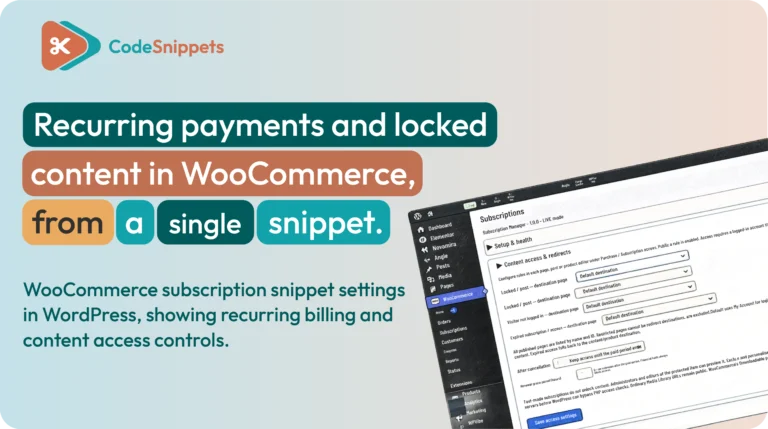
WooCommerce has no subscription option in the standard product editor. But once this snippet is active, you get a Subscriptions area in WordPress plus extra controls inside your existing product screens. And there’s no new product type to pick from the dropdown.
- Recurring products. Set a billing interval, then decide when payments should stop.
- Stripe payments. Connect a Stripe account to take recurring payments. This version doesn’t support PayPal.
- Renewal reminders. Emails at 14 days, seven days, and one day before renewal.
- Subscription management. Review and filter subscriptions, send individual reminders, and manage active ones from WordPress. Customers see their details in My Account.
- Access rules. Require a qualifying subscription or purchase before someone can reach specified content or products.
🛠️ How to install it
First, you’ll need an existing WooCommerce store, a Stripe account, and our free Code Snippets plugin. Then take a backup, especially if the store already has live orders or other checkout customizations.
- Download the subscription snippet package from Web Squadron and unzip it.
- In WordPress, open Code Snippets and choose Import.
- Upload the extracted snippet file, then find the imported entry in your snippets list.
- Save and activate the snippet.
- Open the new Subscriptions area and connect Stripe from its settings.
The Stripe connection is designed to set itself up without you adding webhooks by hand. But it’s still worth confirming with a test purchase, rather than assuming activation did the job.
💳 Set up a recurring product
Edit an existing product or create a new one, then scroll past the familiar WooCommerce settings to find the Subscription controls. Once you’ve set your price and billing frequency, choose how the subscription ends.
- When cancelled. Payments continue until the customer or an administrator cancels.
- On a date. The subscription stops on a date you pick.
- After a duration. It runs for a set length of time.
- After a number of payments. It stops once that many successful payments have gone through.
Say you set a GBP 1 monthly product to end after three payments. Checkout needs to tell the customer both the monthly charge and that three payments are due. So read that wording closely, because it has to match the schedule you configured.
🔒 Lock content behind a purchase
Taking recurring payments is only half the job when you sell members-only products or courses. So the snippet handles the other half, with separate controls for what a customer can reach after buying.
Require a purchase before another product
In a product’s purchase access settings, you can make eligibility depend on a one-off purchase or another qualifying product. Just enter the product IDs, then configure the access rules. For example, it stops a follow-on product being buyable until someone owns the prerequisite.
But this isn’t the same as hiding every mention of a product, so check the product page and the add-to-cart behavior using an account that doesn’t qualify.
Protect a page or post
Open the page or post in the normal WordPress editor, then look for its access control box. You can require a subscription, a one-off purchase, or a combination of both. So that’s how you separate general course information from the lessons people are paying for.
And if you built the page in Elementor or another builder, set the restriction in the standard WordPress editing screen, because the access setting is separate from the visual layout.
Protect the downloads too
Downloads tied to subscription access can be restricted as well. So the file stays visible to administrators in the media library, while access to its URL gets checked against the customer’s login and entitlement.
That matters more than it sounds, because locking a lesson page achieves nothing if the PDF behind it opens for anyone with the URL.
Send denied customers somewhere useful
A locked page needs a destination, not a dead end. So in Subscriptions, the content access and redirects settings let you choose where people land when they try to open something they can’t reach.
Build that page first, because it might explain which purchase is needed, or help an existing customer sign in.
📬 Managing renewals and subscriptions
The Subscriptions area lists every subscription, filtered by customer or status. Then open a record to review it, send a renewal reminder, or email the customer directly. Cancellation controls appear on active subscriptions, though they won’t look the same on a record that’s already cancelled.
Renewal reminders depend on WordPress scheduling. So if scheduled events aren’t running on your site, the snippet’s operational alert can flag it. Then check your cron setup when reminders stop arriving.
✅ Test this before you go live
A successful first payment doesn’t prove the setup works. But run through this with test accounts, and you’ll catch the things that only surface later.
- Confirm the amount, billing interval, and end condition all read correctly.
- Check the subscription and its payment appear as expected in the connected account.
- Customer account. Look at the subscription details and cancellation controls from the customer side, not the dashboard.
- Renewal scheduling. Verify scheduled events are running and your reminder settings saved.
- Try protected pages, products, and direct download URLs while logged out, entitled, and not entitled.
- Make sure a denied customer reaches the page you built for them.
And keep a copy of the original snippet before you change anything. You can adapt the code, including the access rules, but any edit to payment or permission logic earns another full pass through this list.

Huge thanks to Imran Siddiq - Web Squadron for architecting this tutorial!
❓FAQ: WooCommerce subscription snippet
🔁 Does this replace the official WooCommerce Subscriptions extension?
No. It’s a separate way to add recurring products and access controls. So before you replace an existing setup, check whether its features cover what your store needs.
💳 Can customers pay with PayPal?
Not in this version. Recurring payments run through Stripe, so PayPal support would need further development.
🛒 Can a one-off purchase grant access to protected content?
Yes. Access rules can use a qualifying one-off product purchase as well as a subscription, depending on how you configure the page or post.
🔑 Do I need Code Snippets Pro?
No. The free Code Snippets plugin imports and runs this snippet. Pro adds things like revisions, conditions, and cloud sync, which are useful on a store like this, but they aren’t required here.
🧑💻 Who supports the snippet itself?
Imran at Web Squadron built it, so questions about how the code behaves are best pointed their way. We can help with anything relating to Code Snippets itself, like importing, activating, or organizing snippets.
✏️ Can I edit the code?
Yes, and that’s the main reason to choose a snippet in the first place. Just keep the original safe, then retest the full journey after any change that touches payments or permissions.
🚀 Start small, then roll it out
Begin with one low-cost test product and one protected page. Then once checkout, account access, reminders, and cancellation all behave, apply the same setup across the rest of your catalog.
But the win here isn’t the recurring charge on its own. It’s a clear, consistent experience from the first purchase through to the final payment or cancellation.