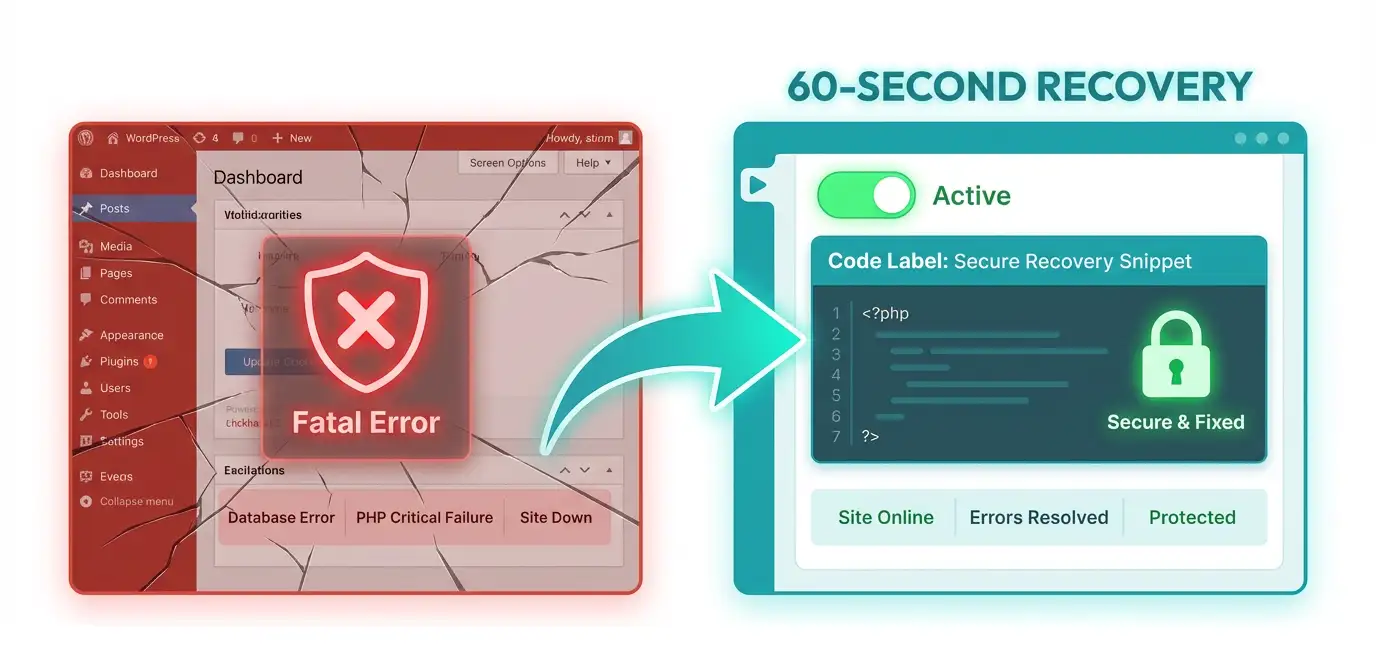
Activating an incompatible code snippet can cause an immediate site crash. ? If you lose access to your WordPress dashboard, you can recover the site without manually editing database files or using FTP. ?️
Immediate Recovery: Safe Mode ⚡
Code Snippets includes a built-in recovery mechanism called Safe Mode. This feature bypasses all active snippets, allowing you to regain access to your site to deactivate the faulty code. ?
To trigger Safe Mode, append ?snippets-safe-mode=true to your site URL in the browser address bar. ?️ For example: https://yourdomain.com/wp-admin/?snippets-safe-mode=true. Once the page loads, all snippets are globally disabled for that session. ? You can then navigate to the snippets menu, identify the most recently activated item, and click deactivate. ✨
Preventing Future Crashes ?️
The “New Way” of WordPress development prioritizes stability by moving logic out of the functions.php file and into a managed environment. ?️ This shift allows for specific safety protocols that manual file editing cannot provide. ?
- Snippet Locking: In version 3.10.0, administrators can lock snippets once they are verified as stable. ? This prevents accidental changes in multi-user environments that lead to syntax errors on production sites. ✅
- Syntax Validation: The plugin validates code before saving. ? If a snippet contains a fatal error, the system prevents it from running, stopping the crash before it reaches your visitors. ?️
- Cloud Syncing for Testing: Code Snippets Cloud allows you to store and sync your library. ☁️ A professional workflow involves testing new snippets in a staging environment before syncing them to your live production site. ?