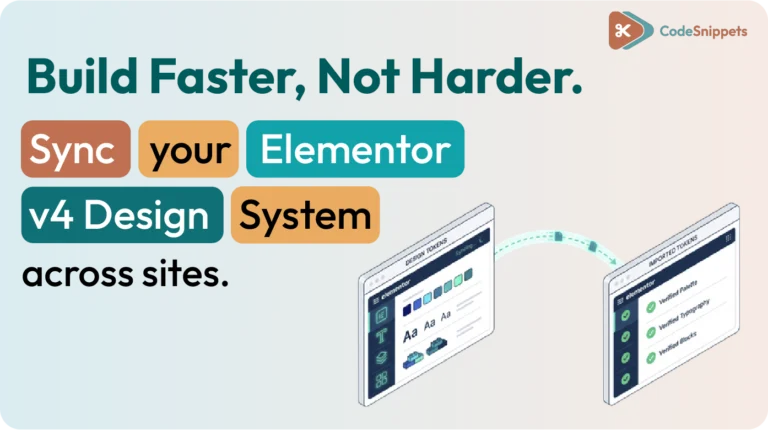
Moving a design system from one WordPress site to another saves hours of setup. Elementor version 4 introduced a dedicated tool for global variables and classes, allowing you to reuse colors, typography rules, and utility classes across projects instantly. 🏗️
What This Process Transfers
This workflow is strictly for design tokens and class definitions. It does not move pages, plugins, or core WordPress settings. It is the ideal solution for:
- Agencies: Creating a consistent design language across client sites. 🏢
- Developers: Deploying a “Blueprint” (global colors, font clamp formulas, utility classes). 💎
- Rebuilders: Migrating established variables to a fresh installation. 🔄
Key Concepts Before You Start
- Variables: Global tokens (colors, spacing, font sizes) used by widgets.
- Classes: Reusable style rules defined in the Elementor Class Manager.
- Blueprint: A pre-built JSON export used as a standardized starting point.
- Regenerate CSS: A mandatory post-import step to compile styles for the front end. ⚡
Step-by-Step: Exporting the Source
- Log in to your source WordPress dashboard.
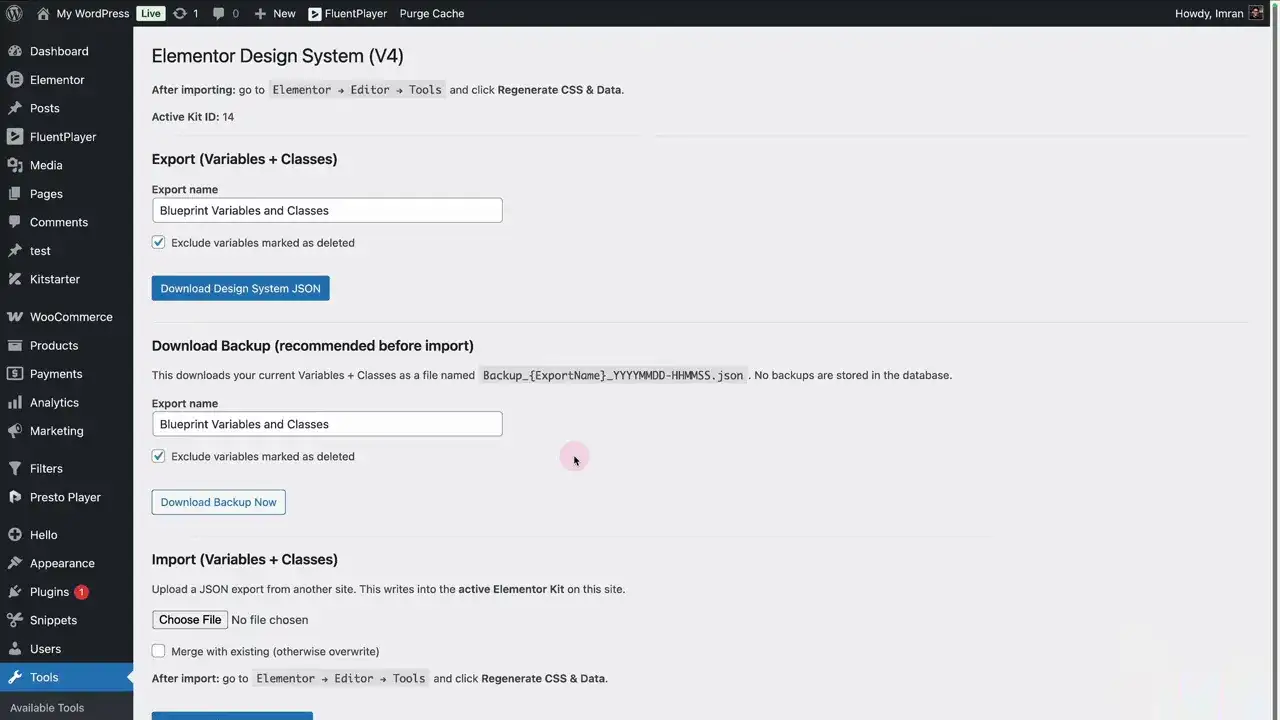
- Navigate to Elementor > Tools and find the Elementor v4 Export option.
- Name your export descriptively (e.g., “Agency-Base-Styles-2026”) and download the JSON file. 💾
Step-by-Step: Importing to the Destination
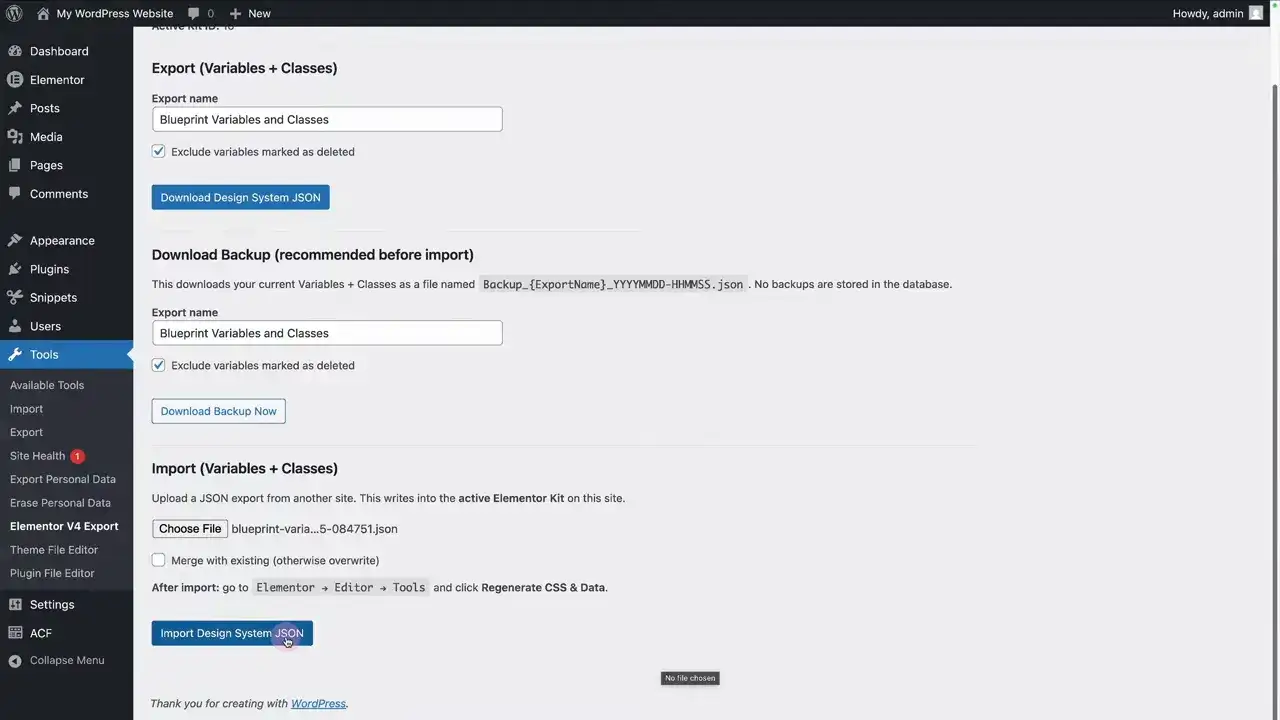
- Open the destination site’s dashboard and go to the Elementor v4 Import section.
- Upload your JSON file.
- Choose your conflict resolution:
- Merge: Adds new items while attempting to preserve existing ones.
- Overwrite: Replaces existing variables and classes with the same ID. ⚠️
- Click Import and wait for the confirmation.
Mandatory: The “CSS Sync” 🔄
After importing, you must go to Elementor > Tools > General and click Regenerate CSS & Data. Clear your site, server, and CDN caches. Without this, your imported variables may not render correctly in the browser.
Using a Ready-Made Blueprint 📋
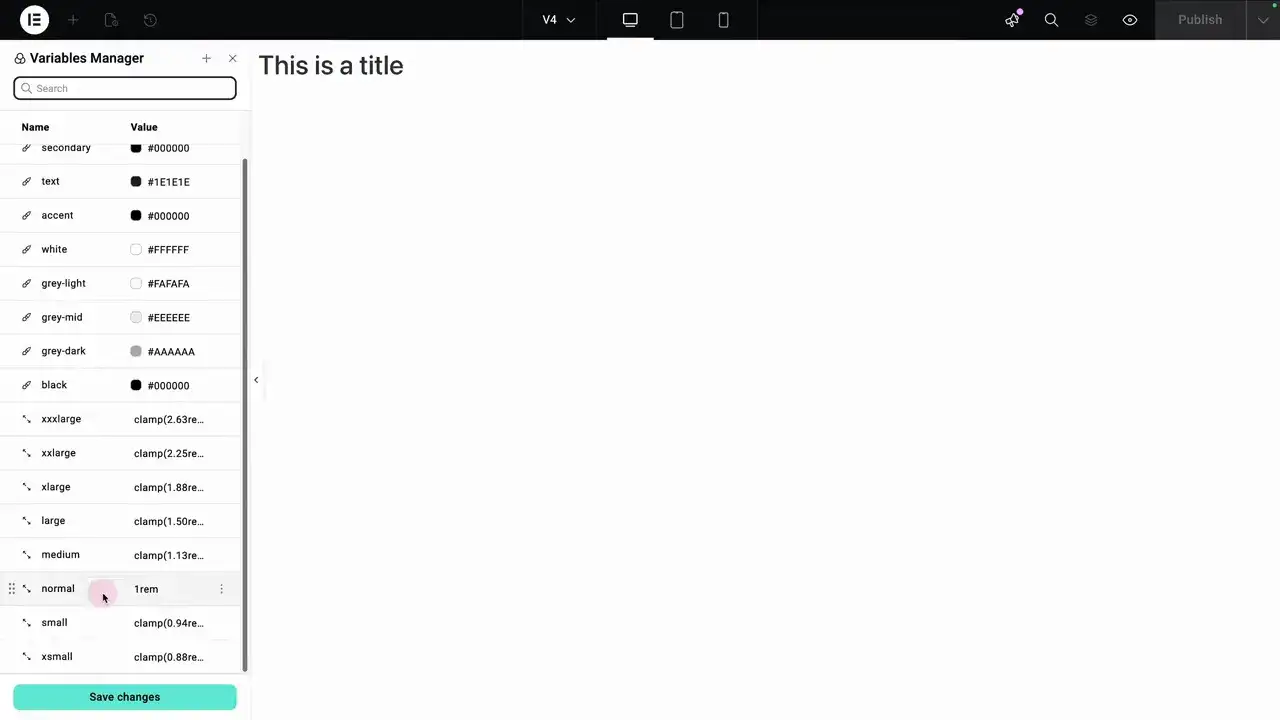
A blueprint provides an instant typography scaling system (like fluid font clamp formulas) and a professional color palette. This standardizes your workflow across teams and ensures predictable class names on every build. 🌍🤝
Common Pitfalls to Avoid 🛑
- Naming Collisions: If both sites use the same variable name but different values, a “Merge” can cause unexpected shifts.
- Dependency Gaps: Classes may rely on specific custom CSS or widgets not included in the JSON.
- Version Mismatch: Ensure both sites are running Elementor v4 or later to avoid data corruption.