Managing dozens of PHP, JavaScript, and CSS snippets inside WordPress can get messy fast. Even with a snippet manager, scrolling through long lists just to toggle one feature slows you down — especially when you’re working on performance, accessibility, or client handoffs.
That’s where a Snippet Switchboard comes in.
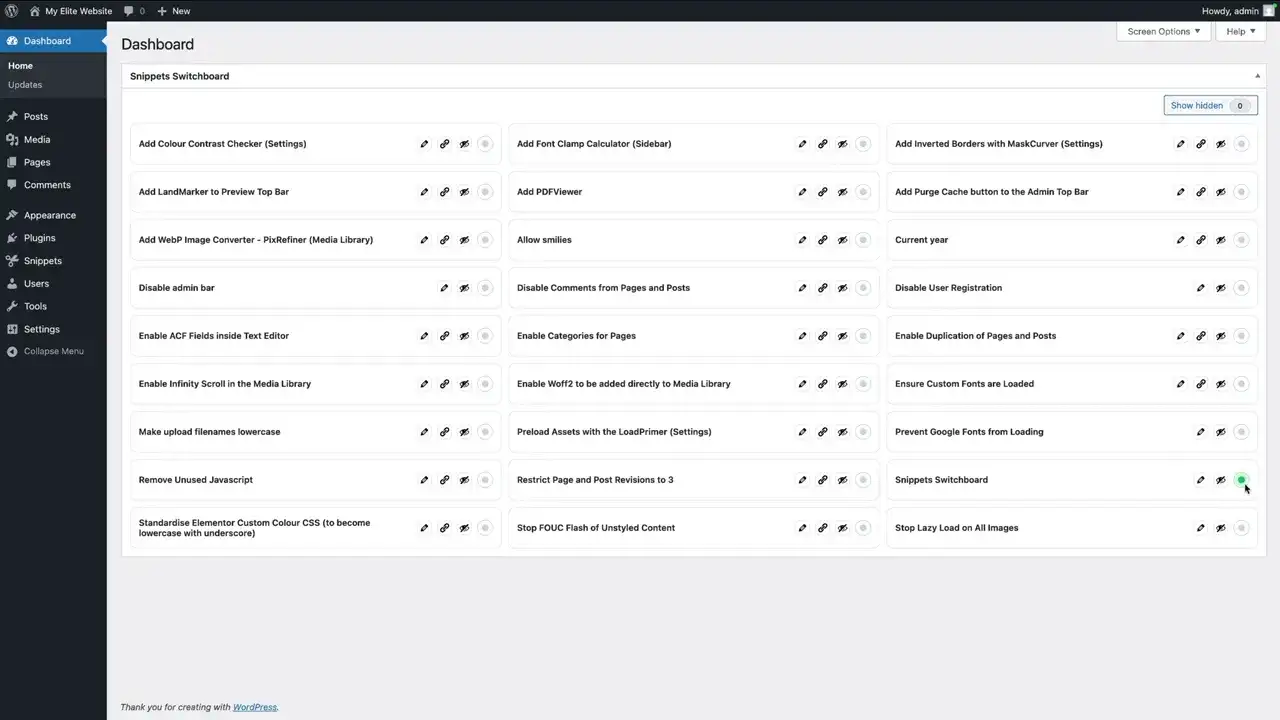
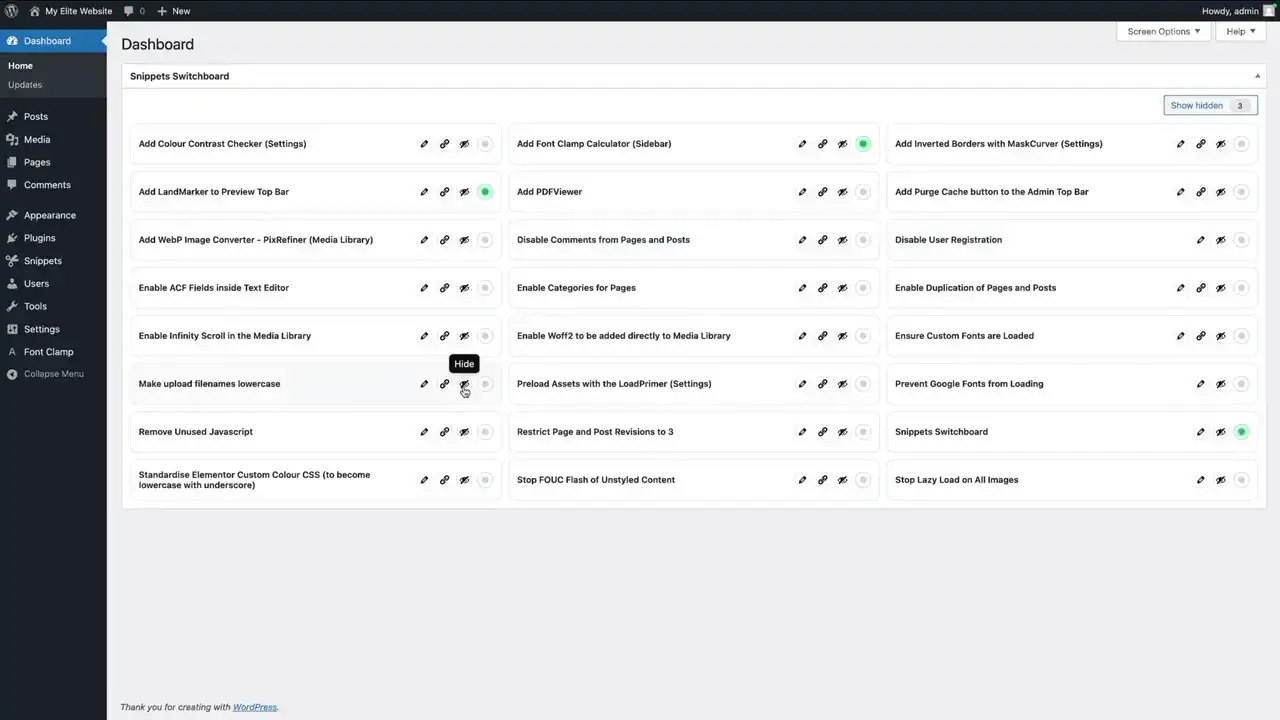
When paired with Code Snippets Pro, a snippet switchboard gives you a clean, centralized control panel inside your WordPress admin dashboard. Instead of digging through editors and lists, you get visual toggles, quick links, and inline documentation – all in one place.
What Is a Snippet Switchboard?
A snippet switchboard is a lightweight admin interface that exposes your existing code snippets as easy-to-use controls inside your dashboard.
It works with Code Snippets Pro – not instead of it.
Code Snippets Pro safely stores and executes your snippets.
The switchboard simply makes them faster and easier to manage.
Here’s what it gives you:
? Toggle Controls: Instantly enable or disable features without opening the snippet editor.
✏️ Quick Edit Links: Jump straight to the snippet editor in one click.
? Documentation Links: Attach guides, videos, or source posts to each snippet.
?️ Visibility Controls: Hide developer-only snippets from clients.
Who Should Use a Snippet Switchboard?
A snippet switchboard is ideal for anyone managing logic-heavy WordPress sites:
?? Developers: Maintain dozens of small tweaks without wasting time in editors.
? Agencies: Hand off sites with a clean, client-safe dashboard.
? Site Owners: Toggle performance, accessibility, and image features easily.
?️ Support Teams: Enable diagnostic snippets during troubleshooting.
If you’re already using Code Snippets Pro to replace plugins and theme hacks, the switchboard is the next step in building a scalable workflow.
Why Use a Switchboard Instead of Only the Snippet Manager?
Code Snippets Pro runs your code.
The switchboard gives you control over it.
Here’s why it matters:
⚡ Faster Control: Toggle features without opening the editor.
? Cleaner Dashboard: Show clients only what they should touch.
? Inline Documentation: Attach guides directly to each snippet.
? Safer Client Handoff: Reduce accidental edits and confusion.
It turns your snippets into features, not just lines of code.
Quick Setup: Install, Import, Enable
Getting started takes just a few minutes:
? Install Code Snippets Pro: Add and activate it on your site.
? Import Your Snippets: Upload your snippet bundle or individual files.
?️ Activate the Switchboard Snippet: Turn on the snippet labeled “Switchboard.”
? Open Your Dashboard: Your new control panel appears instantly.
From here, everything is managed visually — no hunting through long lists.
Core Features of a Good Snippet Switchboard
1. Toggle Activation
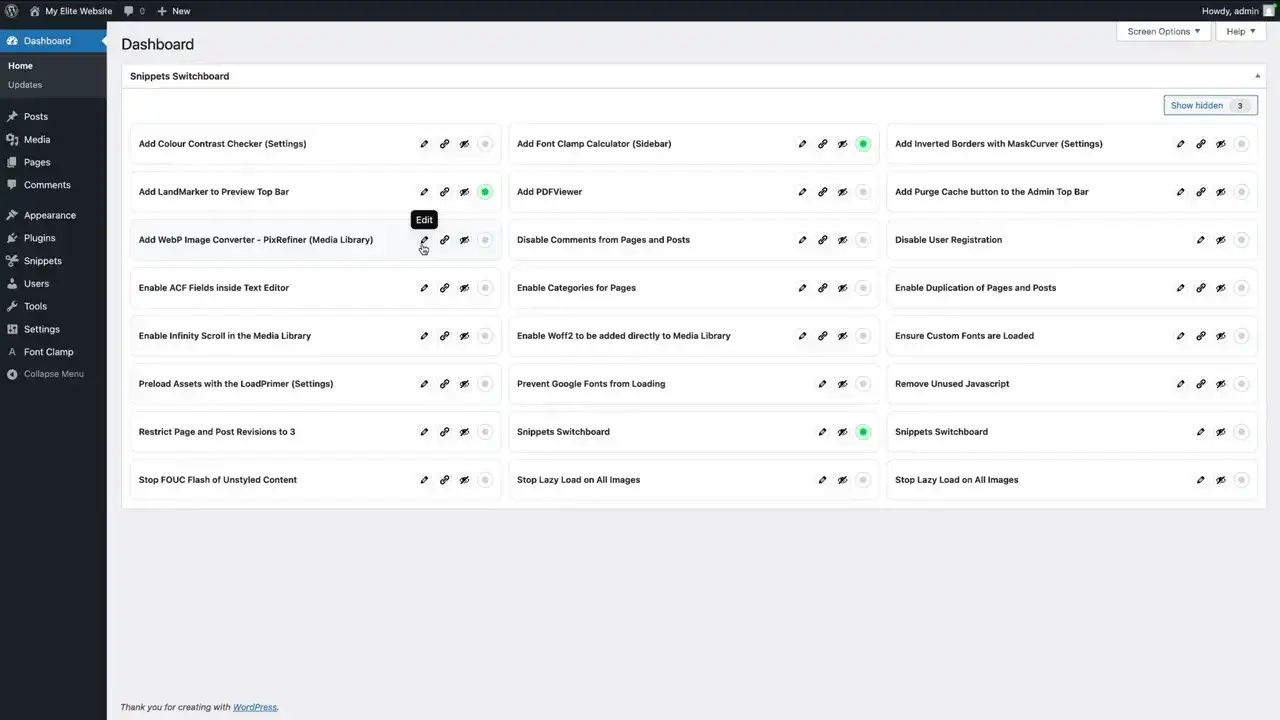
Each snippet gets a simple on/off switch.
? Testing Mode: Turn features on and off during experiments.
? Debugging: Isolate problems quickly.
? Client Preferences: Enable or disable options without touching code.
2. Hide / Unhide Snippets
Remove clutter from your dashboard.
? Client-Friendly Views: Hide dev-only tools.
? Clean UI: Show only relevant features.
♻️ Non-Destructive: Hidden snippets still exist in the manager.
3. Quick Edit Links
No more clicking through menus.
⚡ One-Click Editing: Jump straight to the snippet.
? Less Context Switching: Stay focused while working.
?️ Faster Updates: Modify logic without friction.
4. Documentation Links
Every snippet can have context.
? Built-In Guides: Attach tutorials or videos.
? Source References: Link to blog posts or docs.
? Team Clarity: Anyone with access understands what each snippet does.
Real-World Use Cases
Client Handoff & Audits
? Hide Dev Tools: Keep debugging helpers out of client view.
? Expose Key Features: Show SEO, caching, and accessibility snippets.
? Attach Guides: Add links explaining each toggle.
Performance & Image Optimization
? Speed Testing: Toggle WebP, AVIF, and lazy loading.
? Real-Time Results: Enable/disable features during audits.
?️ Image Control: Manage optimization without plugin overload.
Accessibility & UX Tweaks
♿ Contrast Helpers: Improve color accessibility.
⌨️ Keyboard Navigation Fixes: Enhance usability.
? ARIA Improvements: Add semantic structure with confidence.
Best Practices for Organizing Snippets
?️ Clear Prefixes: Use specific prefixes like performance –, access –, image –, or admin – to keep your library searchable.
? Focused Scope: Ensure each snippet serves one specific purpose to prevent complex debugging issues.
? Metadata Tags: Include relevant documentation links, creation dates, and author information within the snippet comments.
? Staging First: Always verify your code in a staging environment before moving it to production.
? Detailed Documentation: Record exactly what each snippet modifies and the reasoning behind the change.
Security & Safety Checklist
? Pre-activation Review: Carefully audit the code of any imported or third-party snippets before hitting the activate button.
? Data Backups: Maintain current backups of your site before performing any bulk snippet updates or deletions.
? Restricted Access: Limit the ability to create or edit snippets to highly trusted administrators only.
? Version Control: Manage your snippet bundles using a version control system to track history and revert changes if needed.
? Live Traffic Guard: Never run experimental or unverified code on a live site; use a local or development environment instead.
Common Issues & Fixes
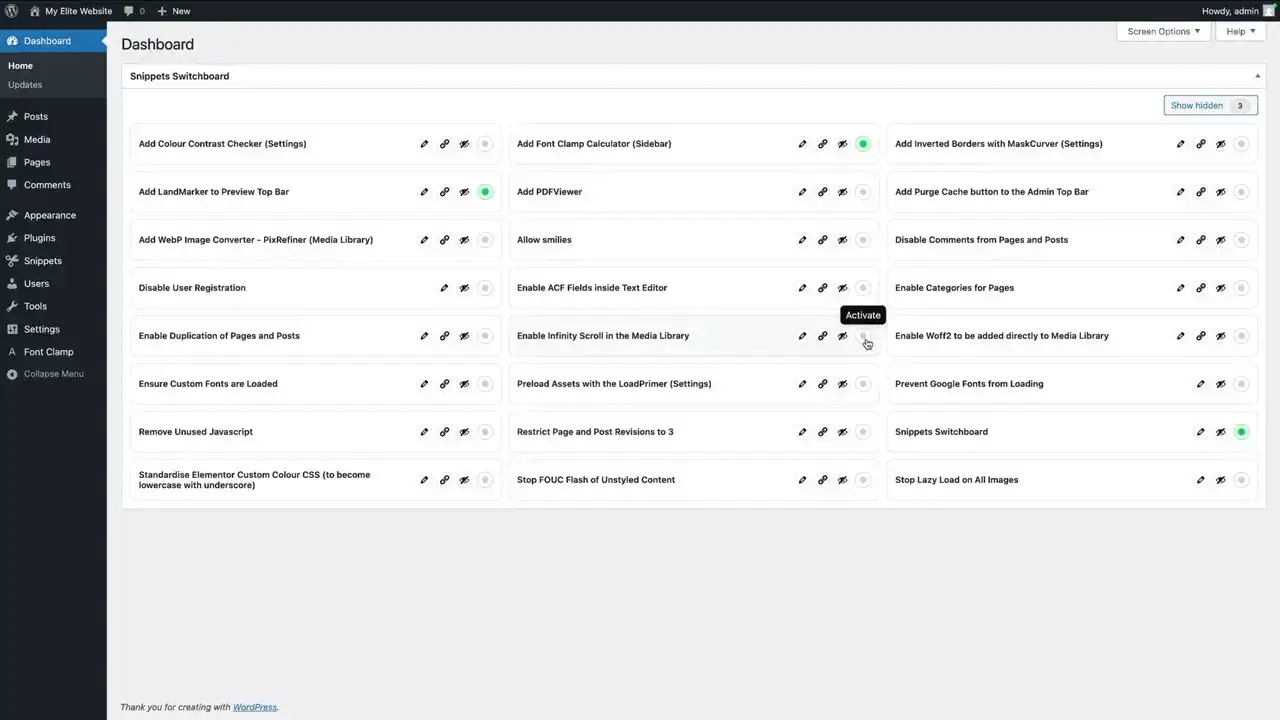
? Snippet Not Showing: Check name and tag filters in the switchboard.
⚙️ Toggle Has No Effect: Clear caches and verify the snippet is globally enabled.
? Docs Links Missing: Confirm URL formatting and tag parsing rules.
Final Thoughts
A snippet switchboard turns Code Snippets Pro into a true control center for your WordPress site.
You get:
⚡ Faster workflows
? Cleaner dashboards
? Safer client handoffs
? Built-in documentation
? Less plugin bloat
If you’re already using snippets to replace plugins, this is how you manage them like a pro.
⬇️ Add the snippet below