Finding a “Fatal Error” on your site is frustrating, especially if you don’t write PHP for a living. Most tutorials tell you to check server logs or edit wp-config.php via FTP, but there is a faster, cleaner way. 🛡️
If a snippet causes a crash, you don’t need to be a senior developer to fix it. Here is the modern workflow to debug, isolate, and resolve errors safely. 🔄
Step 1: Isolate the Culprit with Safe Mode ⚡
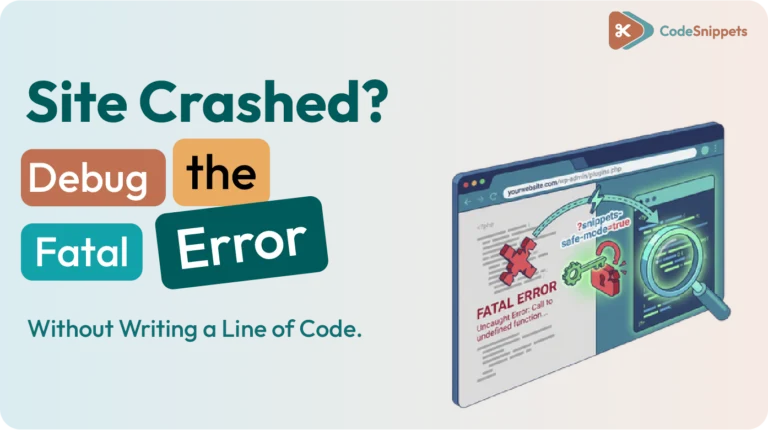
Before you can debug, you must regain control. If you are locked out of your dashboard, append ?snippets-safe-mode=true to your admin URL. 🔓
This stops all snippets from executing for your current session. Once you are back in, navigate to your snippet list. The “culprit” is almost always the snippet you most recently activated or edited. Toggle it to Deactivate and refresh your site in a separate private window to confirm the “Fatal Error” is gone. 📉
Step 2: Read the Error “Humanly” 🔍
The “Old Way” of debugging involves hunting through thousands of lines in an error.log file. The “New Way” uses the built-in validation in Code Snippets. 🏗️
When you open the problematic snippet, look for the red gutter markers in the code editor. Our system highlights syntax errors—like a missing semicolon or an unclosed bracket—before you even hit save. 🛑 If the code looks fine but the site still breaks, the issue is likely a Namespace Conflict (two snippets trying to use the same function name).
Step 3: The Binary Search Method 🧪
If you have many active snippets and aren’t sure which one is causing the conflict, use the “Binary Search” technique:
- Deactivate the top half of your active snippets. ↕️
- Check if the error persists.
- If it’s gone, the problem is in the half you just deactivated.
- If it’s still there, the problem is in the remaining active half.
Repeat this until you’ve isolated the single snippet causing the crash. It’s a logical process that requires zero coding knowledge. ✅
Step 4: Future-Proofing with Unique Prefixes
🛡️ Once you’ve debugged your code, the best way to prevent the next crash is to follow the “Pro” rule of naming. Most fatal errors happen because two snippets (or a plugin) try to use the same function name, like add_custom_button().
Pro Tip: Don’t Debug in the Dark. 🔍 Debugging is easier when you know exactly what changed. High-level teams use automated functional testing to monitor their site’s health in real-time. This creates a feedback loop: your tests alert you to the “what,” and your snippet manager allows you to safely deploy the “how.” It’s the ultimate “New Way” toolkit for zero-downtime development. 🛡️✨
To stay safe, always prefix your functions. Instead of a generic name, use your initials or project name, like cs_pro_add_custom_button(). This simple habit ensures your custom logic never “collides” with your theme or other plugins. It’s the ultimate “set it and forget it” strategy for a stable, error-free WordPress environment. 💎✨
❓FAQ: FAQs for Your Fatal Error Guide
Why did my site crash after I deactivated a snippet?
The “Dependency Ghost”: This is a classic “Old Way” pitfall. If other parts of your theme or plugins were calling a function defined inside that deactivated snippet, you’ve just created a Fatal Error: Call to undefined function. * The New Way Fix: Always wrap your custom logic in a if ( function_exists() ) check before calling it elsewhere. This ensures that even if a snippet is toggled off, your site’s “DNA” remains stable and doesn’t collapse. 🧬✨
What is the difference between a 500 Error and a Fatal Error?
The “Gatekeeper” Distinction: They are cousins, but not twins. A Fatal Error is a PHP-level crash—the engine literally stopped running. A 500 Internal Server Error is often the server’s “Security Guard” (like a WAF or ModSecurity) blocking a request because it looks suspicious.
-
The New Way Fix: If you see a “White Screen,” it’s a Fatal Error—check your logs. If you see a “Gray 500 Page” only when hitting Save, it’s a Firewall block. Knowing the difference saves you hours of blind debugging. 🛡️
How do I prevent fatal errors during large-scale updates?
The most robust method is to combine a modular snippet workflow with automated testing. While Code Snippets Safe Mode protects you during a crash, automated AI testing catches subtle regressions that manual debugging might miss. It’s about moving from “fixing breaks” to “guaranteeing performance.” 🏗️