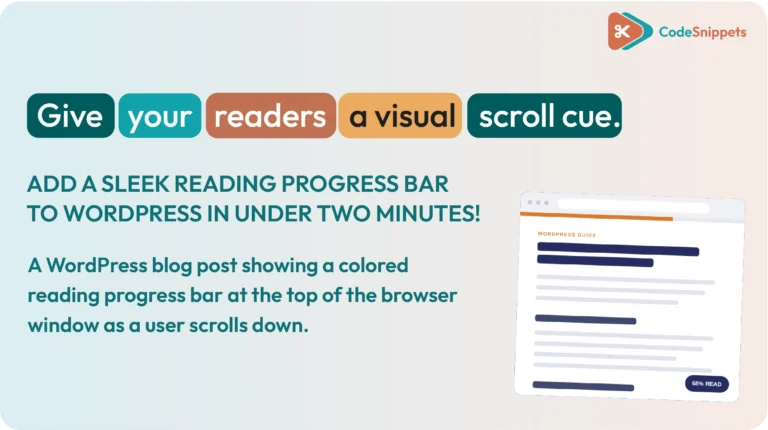
A reading progress bar is a thin strip along the top of a page that fills up as you scroll. It gives readers a quick sense of how far through an article they are. In addition, it gently nudges them to keep reading. In this guide, you will learn how to add a reading progress bar to your WordPress posts using a single snippet. As a result, you do not need to edit your theme files or install heavy single-purpose plugins.
📊 What a Reading Progress Bar Does for Your Blog
The idea behind a progress bar is simple. As a visitor scrolls down your post, a colored bar across the top of the screen grows from left to right. When they reach the end of the article, the bar fills completely.
It is a small visual touch, but it does real work for your site user experience:
- Sets Expectations: Readers immediately see how much content remains in long-form posts.
- Creates Momentum: The visual movement encourages visitors to keep scrolling down the page.
- Polishes Your Design: Your site feels modern, professional, and well-designed.
- Improves Mobile Browsing: Mobile web browsers often hide the default scrollbar. Therefore, a progress bar gives phone users a progress cue they would not otherwise see.
🧩 Why You Should Add It With Code Snippets
You could add this feature by editing your theme files, but that approach comes with significant risks. For example, theme updates can quietly overwrite your custom changes. Furthermore, one small typo in your functions file can take your entire site offline.
Using the Code Snippets plugin avoids both of these problems. You add the code as a self-contained snippet, keep it completely separate from your theme, and toggle it on or off with a single click. In addition, if anything ever looks wrong, Safe Mode lets an administrator temporarily pause snippets, access the admin area, and deactivate the issue quickly.
⚡ The Reading Progress Bar Snippet
Here is the full snippet. It adds the bar, styles it, and updates it as the reader scrolls, all in one place. Copy it as it is, and we will customise it further down.
					add_action( 'wp_footer', function () {

    // Only show the progress bar on single blog posts.
    if ( ! is_singular( 'post' ) ) {
        return;
    }
    ?>
    <div id="cs-reading-progress" aria-hidden="true">
        <span id="cs-reading-progress-fill"></span>
    </div><style>#cs-reading-progress {
            position: fixed;
            top: 0;
            left: 0;
            width: 100%;
            height: 5px;
            background: transparent;
            z-index: 9999;
            pointer-events: none;
        }
        #cs-reading-progress-fill {
            display: block;
            width: 0;
            height: 100%;
            background: #e8590c; /* Change this to your brand colour */
            transition: width 0.1s ease-out;
        }</style> <script type="litespeed/javascript">(function(){var bar=document.getElementById('cs-reading-progress-fill');if(!bar){return}
var ticking=!1;function update(){var scrollTop=window.scrollY||document.documentElement.scrollTop;var docHeight=document.documentElement.scrollHeight-window.innerHeight;var progress=docHeight>0?(scrollTop/docHeight)*100:0;bar.style.width=progress+'%';ticking=!1}
window.addEventListener('scroll',function(){if(!ticking){window.requestAnimationFrame(update);ticking=!0}},{passive:!0});window.addEventListener('resize',update);update()})()</script> <?php
} );
This is a PHP snippet. It prints a small bar into your site footer, but only on single blog posts, and it uses lightweight vanilla JavaScript with no jQuery.
🛠️ How to Add the Reading Progress Bar Snippet
Setting up this feature on your WordPress site takes about one minute.
First, install and activate the free Code Snippets plugin from the official WordPress plugin repository. Next, navigate to Snippets > Add New inside your WordPress dashboard.
After creating a new snippet, give it a recognizable title such as “Reading Progress Bar”. Next, select the option to run the snippet on the site front-end. Finally, save your changes and activate the snippet.
Once activated, open any published blog post on your site and scroll down. The colored bar will appear along the top edge of your browser and fill smoothly as you read.
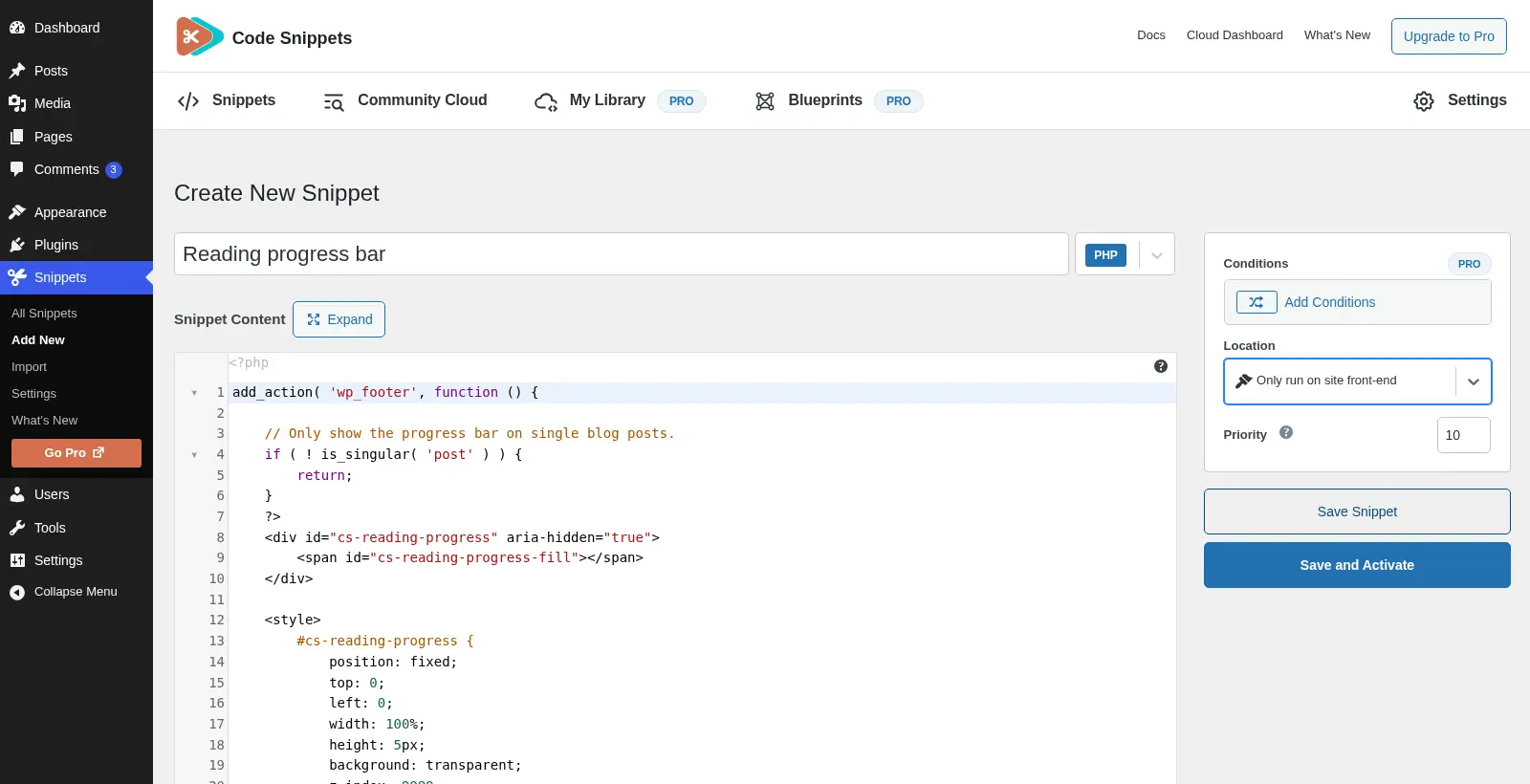
🔍 How the Reading Progress Bar Snippet Works Behind the Scenes
If you like to understand how your site features function, here is a quick overview of what happens behind the scenes.
The HTML structure adds a fixed bar at the top of the viewport with an inner fill element inside it. The CSS pins that bar to the top, sets its height and color, and turns off pointer events so it never interferes with visitor clicks. Finally, lightweight JavaScript listens for scrolling events, calculates how far down the page the visitor has moved as a percentage, and updates the bar width automatically.
Because the script uses a passive scroll listener alongside requestAnimationFrame, it runs extremely fast and will not slow down your page speed.
🎨 How to Customise Your Progress Bar
The progress bar is written to be easy to adjust. Here are the simple changes you can make to fit your brand style:
Change the Bar Color
You can update the background color value inside the styling section. Simply swap the default hex color for any brand color code or CSS variable from your current theme.
Adjust the Bar Height
The default bar height is 5 pixels. However, you can increase or decrease this pixel value to make the progress bar thicker or more subtle.
Position the Bar at the Bottom
If you prefer the progress bar at the bottom of the screen, you can change the top position property to bottom instead.
Display the Bar on Static Pages
By default, the script only targets single blog posts. However, you can adjust the display condition to include static pages or display the bar across your entire website.
🏁 Key Takeaway
A reading progress bar is a small detail that makes your WordPress blog feel thoughtful and complete. By using the Code Snippets plugin, you can add this feature in minutes, keep your code safe from theme updates, and turn it off whenever you want.
❓FAQ: Reading Progress Bar & Code Snippets
⚡ Will this progress bar snippet slow down my WordPress site?
No! The script is tiny, uses no heavy external libraries, and runs on a passive scroll listener. Therefore, the impact on your site performance is completely unnoticeable.
🧩 Will it work with my custom theme or page builder?
Yes! The snippet hooks into your site footer and runs independently of your active theme. As a result, it works seamlessly with block themes, classic themes, Elementor, and Divi.
🎯 Can I show the reading bar on specific blog posts only?
Absolutely! You can replace the standard display check with a specific post condition. For example, you can target specific post IDs or limit the bar to a single post category.
💻 Do I need coding experience to use this snippet?
Not at all! To add the progress bar, you simply copy the snippet file, import it into the plugin dashboard, and activate it. Customizing colors or height is completely optional.
📱 Is the reading progress bar mobile friendly?
Yes! The bar stays fixed to the top of the browser screen and scales dynamically to any viewport width. Consequently, it works perfectly across smartphones, tablets, and desktop displays.