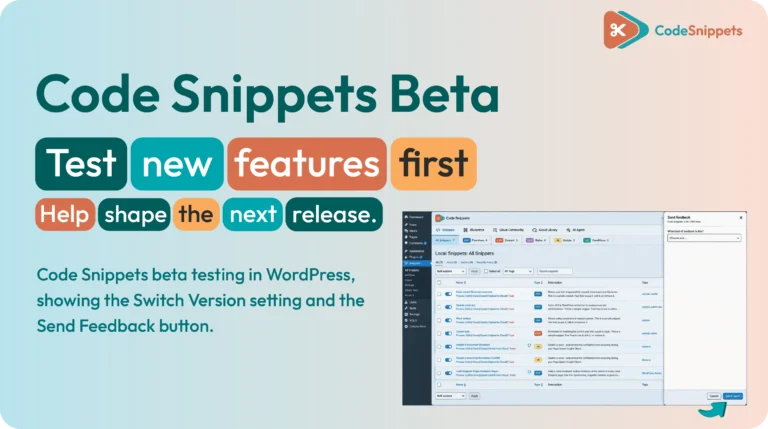
We test every Code Snippets release ourselves. Then the community proves it on real sites, and that second part is where you come in.
Join the Code Snippets beta and you get new builds weeks before the final release, send feedback straight from your WordPress dashboard, and watch your reports turn into fixes. So here’s why the program exists, what happens to every report, and exactly how to get set up.
🔍 Why beta testing matters
We can run all the internal and automated tests in the world, but nothing compares to real-world use. Every site combines hosts, themes, and plugins in ways we could never predict. And that unscripted mix is where hidden bugs come to light.
Beta testers catch them first, on staging sites, before they get anywhere near a live one. That’s why we treat beta testing as a core part of our build process rather than an afterthought. Hands-on feedback from real sites is the last check before we ship, so your input directly shapes what goes out.
📬 What happens to your report
Nothing you send disappears into a void. Every report follows the same path:
- Our development team reads every report, along with any environment details you include. No triage bot, no auto-close.
- We confirm the behavior on our side, using the details you gave.
- Confirmed bugs get ranked by impact, then scheduled.
- Fixed and credited. The fix lands in a later build. And when your report leads to one, we credit you in the release notes where we can.
So keep an eye on the changelog, and you’ll see which findings became fixes.
🎁 What you get as a tester
- Early access. New features weeks before general release.
- A say in what ships. Your feedback shapes the stable version and the roadmap behind it.
- Release-note recognition. When your report leads to a fix, your name can appear in the notes for that version.
- Swag Store credit. If you help us resolve an issue we didn’t know about, you may receive a Swag Store credit voucher as a thank you.
- A direct role in development. We’ve built this plugin with our community for fourteen years, and testers sit closest to the work.
🛠️ How to install the Code Snippets beta
Testing the latest beta takes a few quick steps, all inside your WordPress dashboard. But one thing comes first: betas belong on staging, never on production. Most hosts offer one-click staging, so set that up before you start.
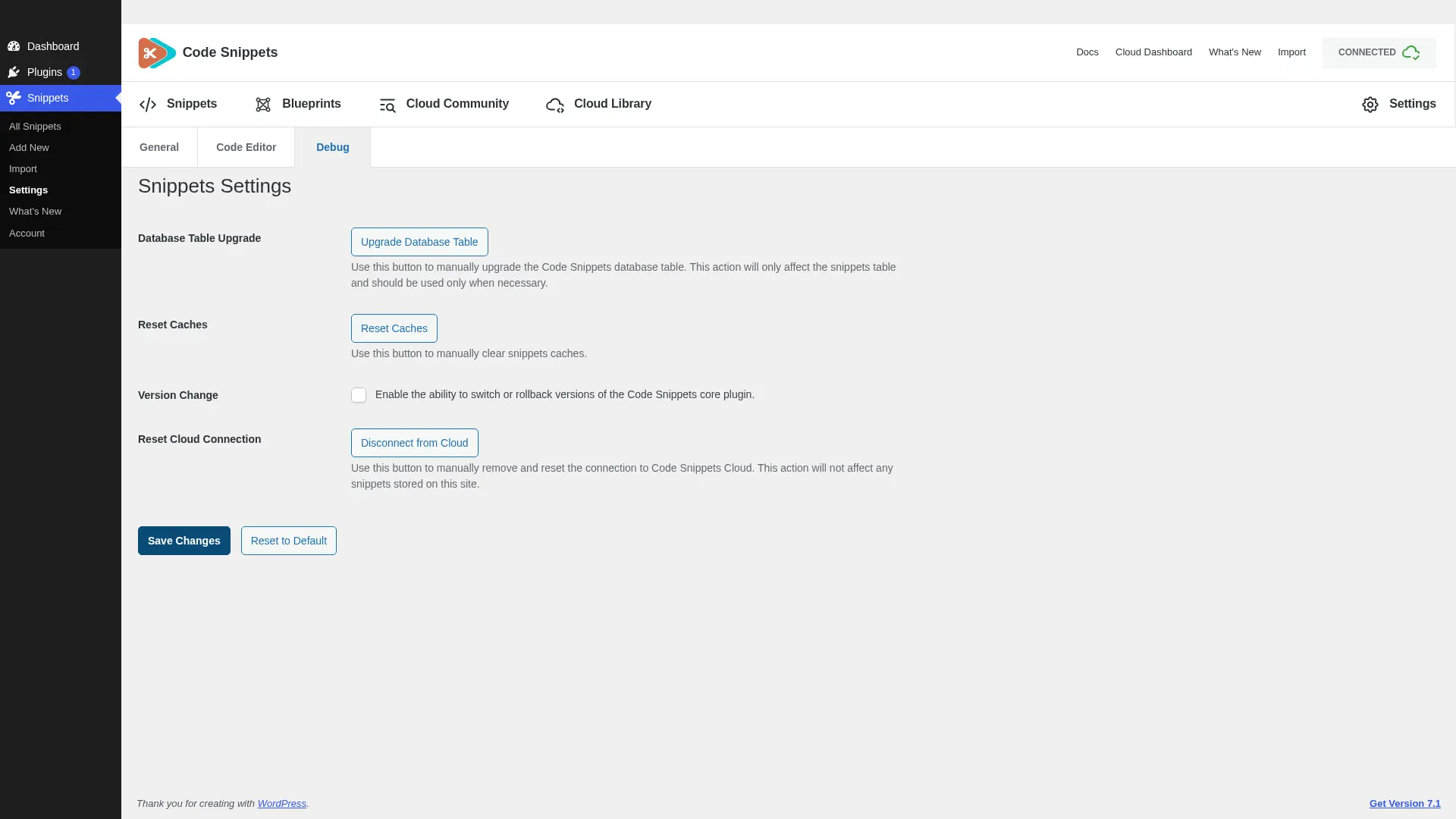
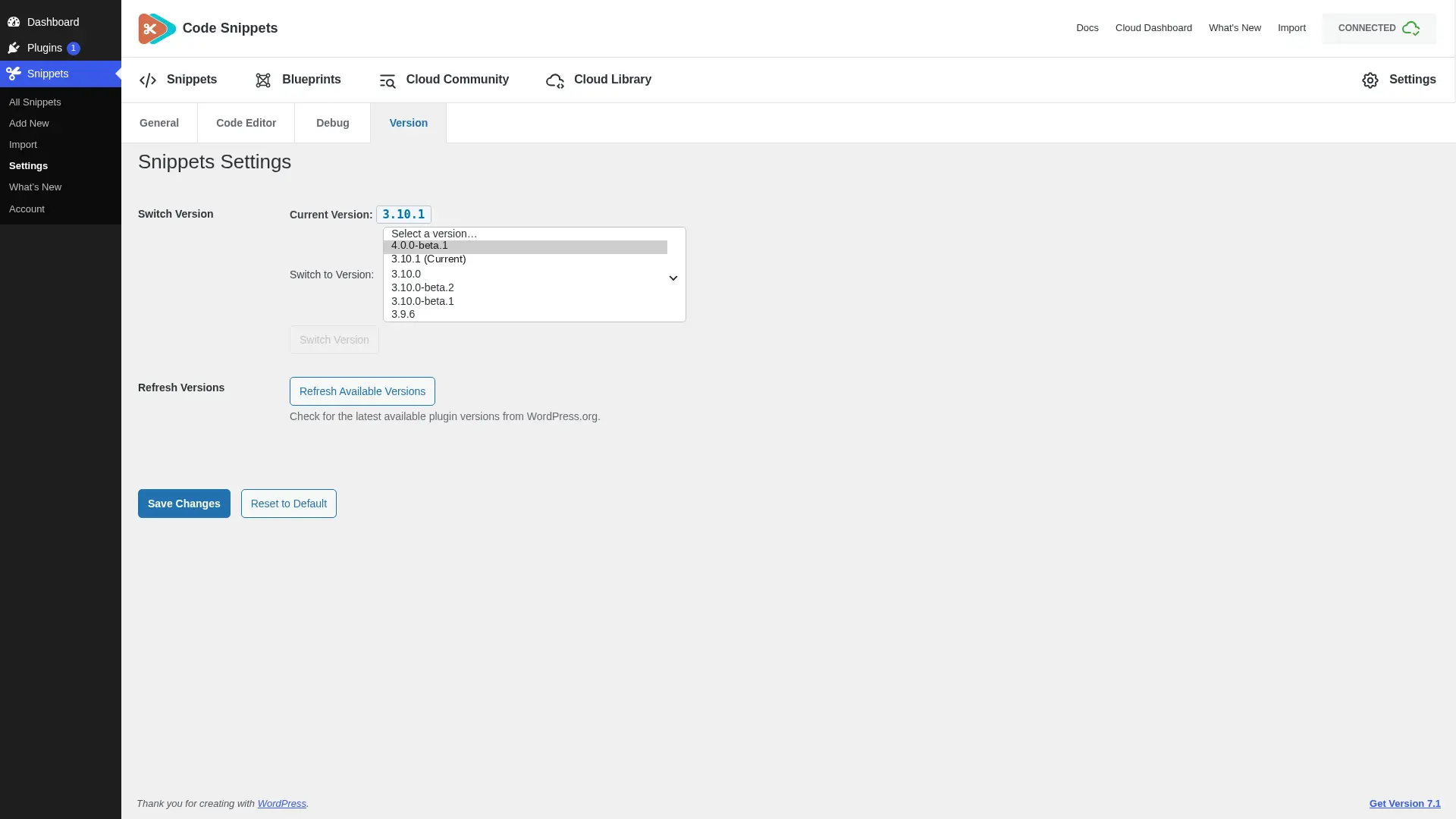
- Open the version settings. Go to Code Snippets, then Settings, then Advanced.
- Select the beta. Under Switch Version, pick the available beta release from the drop-down. If it isn’t listed, click Refresh Versions first.
- Then let WordPress complete the version switch.
- On Pro? Update both versions. If you use Pro, test the matching Core and Pro beta builds together.
That’s it. You’re running the beta, and the same Switch Version control takes you back to stable whenever you like.
💬 Sending feedback from your dashboard
Reporting a bug used to mean leaving your workflow to hunt down a form. Not anymore. Now you can send feedback directly inside the Code Snippets plugin, right in your WordPress admin. Describe the issue once, hit send, and get right back to building.
To switch it on:
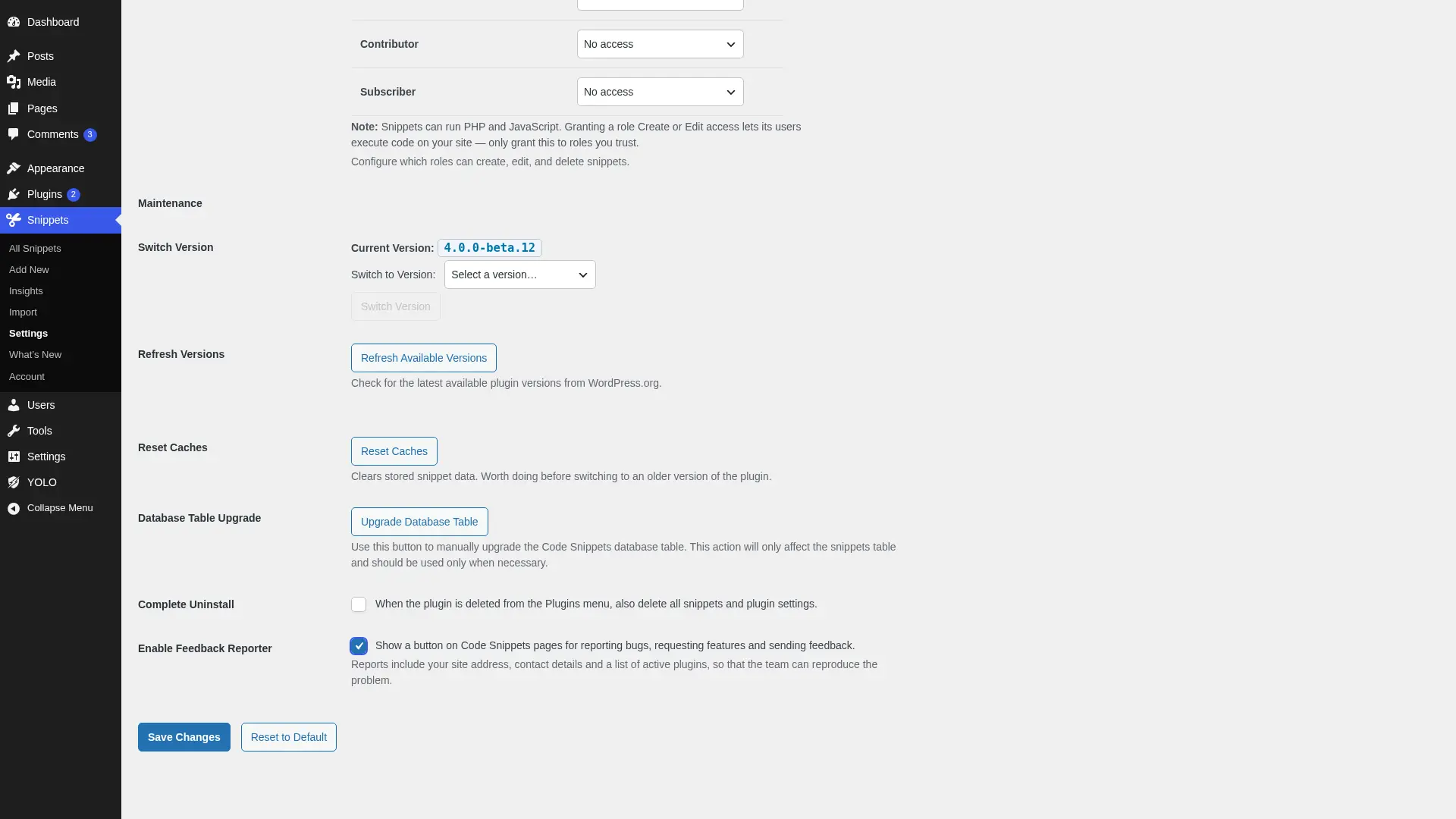
- Go to Code Snippets, then Settings, then Advanced.
- Enable the Feedback Reporter, read the information shown with the setting, and save your changes.
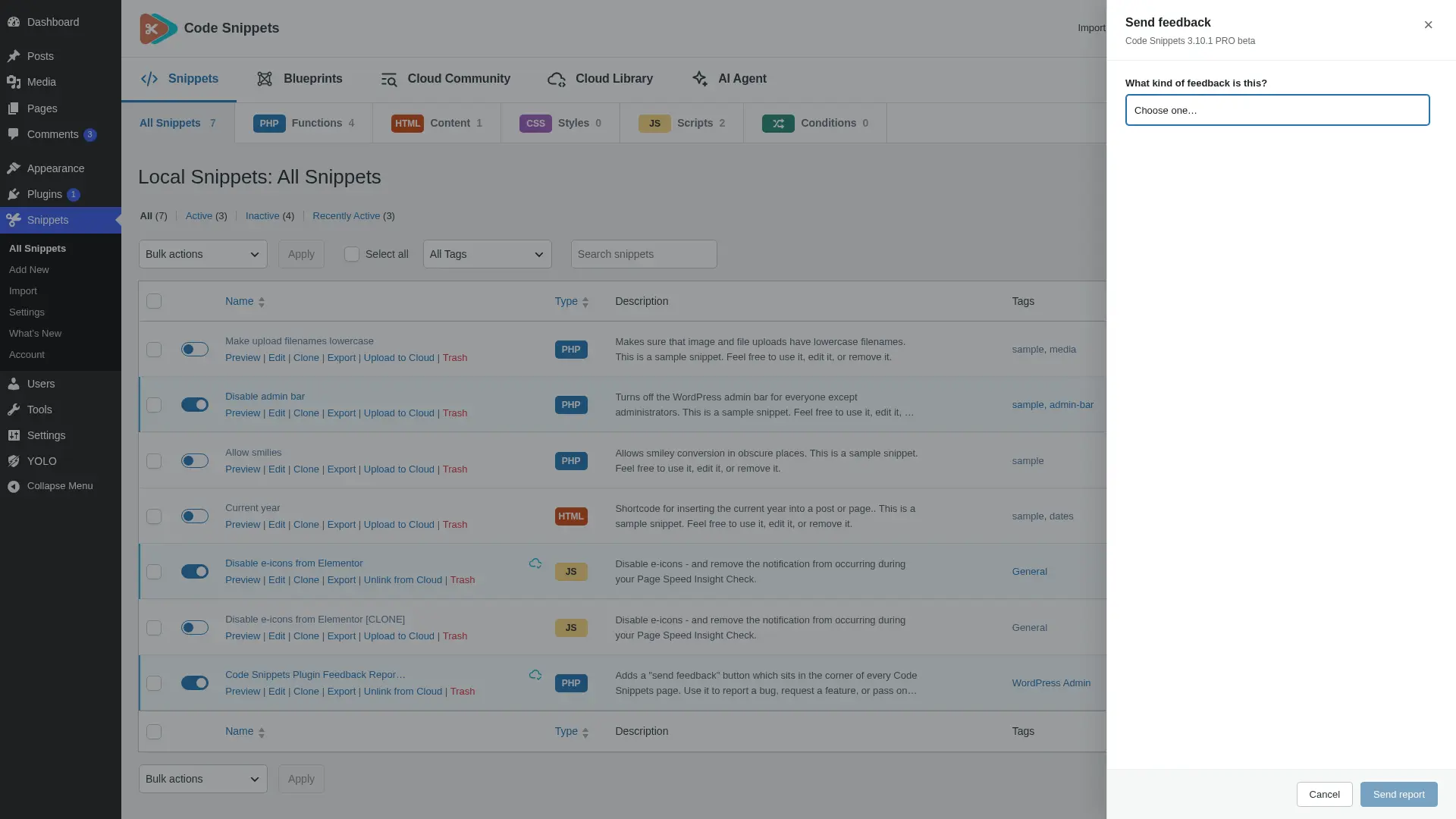
- Click Send Feedback on any Code Snippets admin screen. The reporter can include your site address, contact details, active plugins, and the version you’re testing, which is what helps our team reproduce the problem. Before anything goes, it shows you exactly what it will send.
- Use it to report a bug, request a feature, or send general feedback. And if you prefer the website, the feedback form is still available, and every submission gets the same priority whichever route you choose.
❓FAQ: Code Snippets beta
🔑 Do I need a Pro license to join?
No. Free and Pro users are both welcome, and both editions need testing. So whether you run the free plugin from WordPress.org or Code Snippets Pro, the reporter identifies your edition and version when you submit feedback.
🔎 Is the beta safe to run on my live site?
Run it on a staging site. Betas exist to catch problems, so problems are expected. Safe Mode and clearer error recovery protect you, but your production site deserves the stable release.
💬 How do I enable and send feedback from my dashboard?
Go to Code Snippets, then Settings, then Advanced, and enable the Feedback Reporter. Once you save, a Send Feedback button appears on every Code Snippets admin screen. Prefer the website? The web feedback form is always available and gets exactly the same priority.
📬 What happens after I submit a report?
Our team reads it, reproduces it, ranks it by impact, and schedules the fix. When your report leads to a fix, you can be credited in the release notes for that version.
🔎 What should I report?
Everything. Crashes and conflicts, but also the small things: a confusing label, a button in an odd place, a workflow that feels slower than it should. If it slows you down, we want to hear about it.
↩️ Can I go back to the stable version?
Yes, at any time. Go back to Code Snippets, then Settings, then Advanced, and pick the stable version under Switch Version. Still, it’s worth exporting your snippets first, just as a precaution.
🏷️ Will I know when my bug is fixed?
Yes. Watch the changelog, because fixes are listed there with tester credits wherever a report led the way.
🚀 The next release is being tested right now
By people like you, on stacks like yours. So set up a staging site, switch to the beta under Switch Version, and send us what you find from inside your dashboard.