Elementor’s WordPress Menu widget often creates a frustrating gap in an otherwise unified V4 design system. You might have perfect atomic variables for brand colors, font families, and responsive, clamp-based sizes. However, the menu controls usually restrict you to Elementor’s older, legacy global styling options.
The best solution is to use the Code Snippets plugin to extend the existing WordPress Menu widget so it reads directly from your Elementor V4 variables. This allows you to apply your core design tokens to menu text, hover states, typography, and sizing without rebuilding your navigation from scratch.
🧩 Why V4 Variables Do Not Automatically Appear in the Menu
Elementor V4 variables belong to a modern design system architecture. They allow developers to store highly reusable layout tokens, including:
- Brand and Accent Colors: Unified palettes for consistent application.
- Typography Font Families: Specific fonts assigned to structural tokens.
- Fluid Font-Size Values: Smart, responsive text scales using clamp-based equations.
In contrast, the native WordPress Menu is an existing V3 legacy widget. Because its style interface was built around older global colors and fonts, a V4 variable is not available as a direct choice in the default dropdowns.
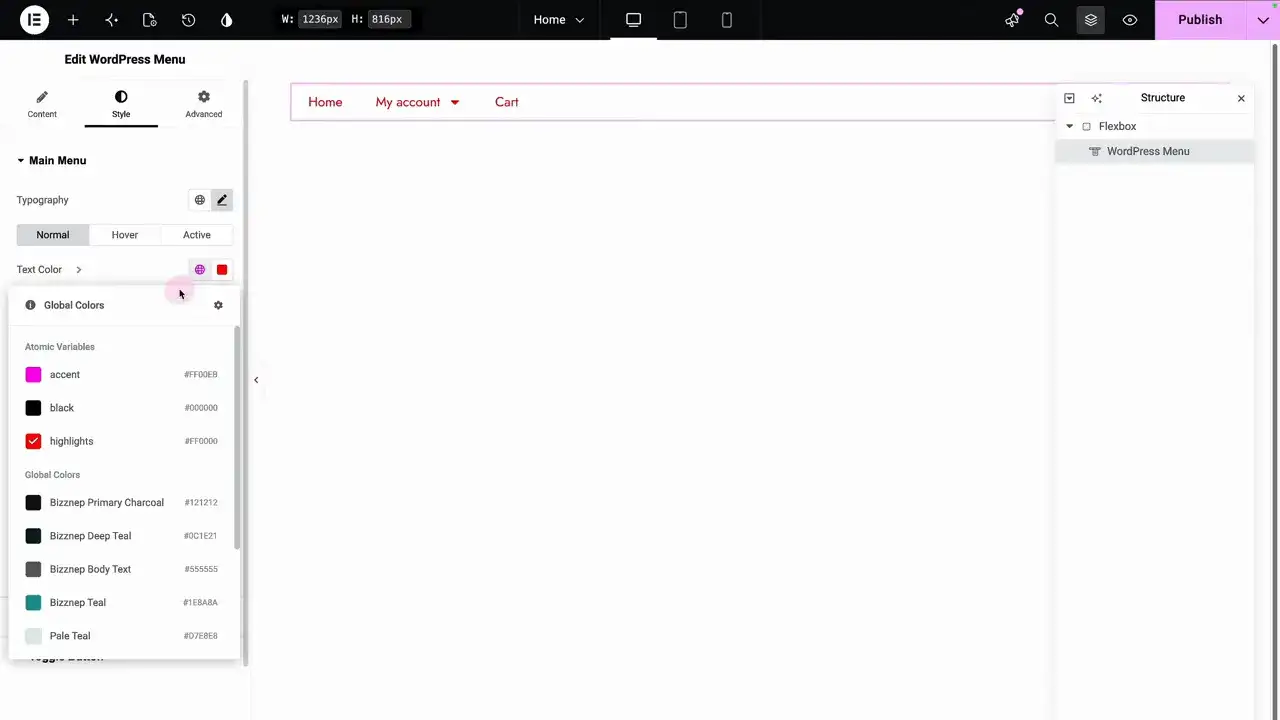
This limitation is especially noticeable with typography. While you can sync a color variable into Elementor’s Global Colors, font-family and font-size variables have no clean, one-to-one path into a comparable legacy global style. Therefore, your colors might be reusable after manual syncing, but your typography values still require separate, manual handling.
⚡ Enable Direct V4 Variable Selection with Code Snippets
A clean PHP snippet handled by Code Snippets enhances the existing Elementor WordPress Menu widget by injecting additional variable pickers. This method is incredibly clean because it does not create a messy duplicate widget. Furthermore, it completely removes the need to rebuild your current header layouts.
After the snippet becomes active and you refresh the Elementor editor, extra chevron controls will appear directly next to your supported styling fields. These buttons expose your entire V4 design system variables directly inside the native widget panel.
1.Download the Snippet:Prerequisite.
Download the snippet from the Web Squadron page linked in this post, where it is shared as a ready-to-import file.
2.Prepare Code Snippets Plugin:WordPress Repository.
Install and activate the official Code Snippets plugin from the WordPress repository to manage the code safely.
3.Import the File:Admin Dashboard.
Unzip your downloaded file. Next, navigate to your WordPress Snippets dashboard, choose Import, and upload the unzipped file.
4.Activate and Refresh:Deployment.
Click Save Changes and Activate. Finally, open your Elementor editor and refresh the page to load the new style controls.
Important Note: Do not assume an imported snippet will behave identically in every code-management plugin. If the snippet fails to run, always confirm that it was imported through the recommended Code Snippets plugin rather than pasted elsewhere.
🎨 How to Apply V4 Variables to Menu Colors
With your extension active, the normal color field remains fully functional. However, clicking the newly added chevron icon opens up your dedicated V4 variable selector. Choosing a V4 value from this custom selector will instantly override any ordinary color set in that control.
This setup is incredibly useful because the selector accesses variables that exist in the V4 design system even if they have never been synced to Global Colors.
💡 Example: Default and Hover Menu Colors
Suppose your design system includes a distinct Highlight color and a separate Accent token. You can use the new variable selector to assign Highlight to the default menu text, and then select the Accent token for the hover state.
You can apply this exact same approach to other menu color controls, including pointer elements or underline styling. The important distinction to remember is that the V4 selection always takes priority. If a standard color is already configured in the legacy control, choosing a V4 variable replaces it for that specific property.
🔍 Use V4 Fonts and Clamp Sizes in Menu Typography
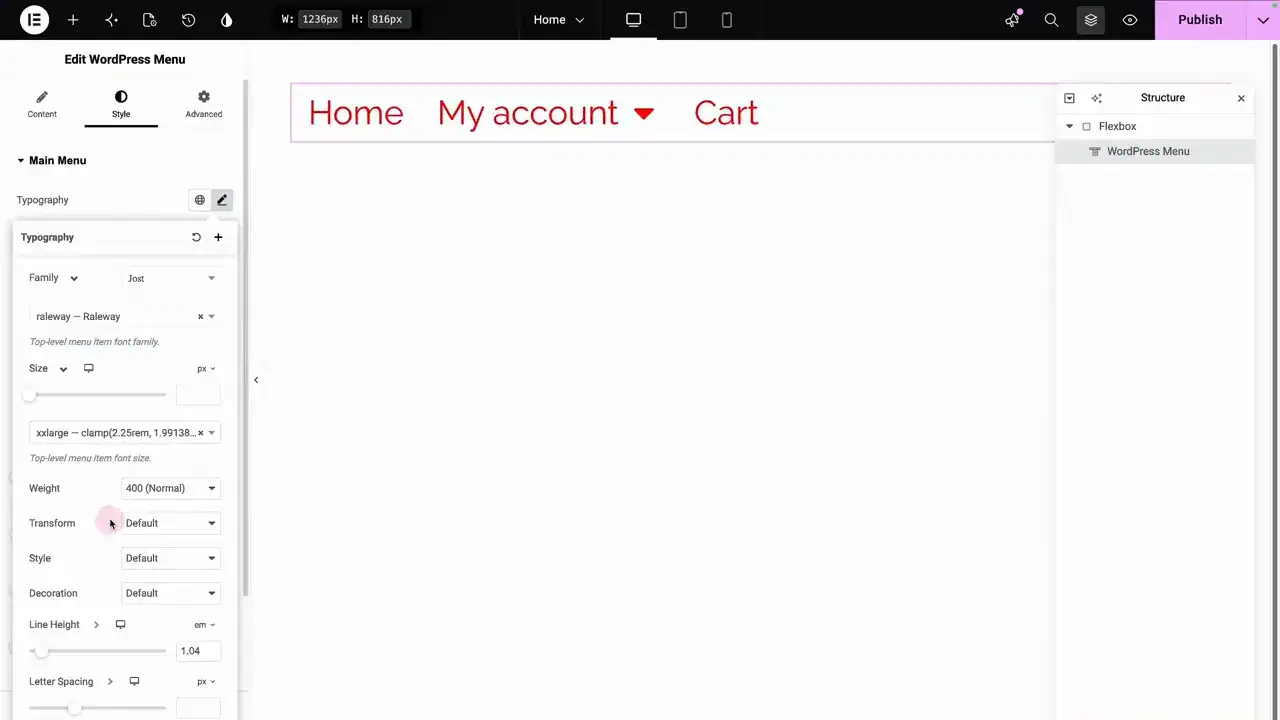
The single greatest benefit of this snippet is getting access to variables that cannot be synced into legacy styles. Under your menu’s typography settings, the extra selector cleanly exposes font-family variables and responsive font-size tokens.
This enhancement keeps your navigation typography perfectly aligned with the rest of your website. Rather than manually entering a static pixel size for the menu, you simply choose the exact same size token used across your other pages. If you adjust that token down the road, the menu follows the system automatically instead of becoming an isolated exception.
🛠️ What You Can Style with the Variable Picker
Wherever the WordPress Menu widget provides a supported color or typography field, the added selectors make it possible to choose from your live V4 variables. In practice, this completely covers:
- Menu link color states (Normal, Hover, and Active).
- Font-family assignments.
- Responsive font-size values.
The menu itself remains the exact same native widget. It retains your layout configurations, responsive breakpoints, and existing settings. The modification is strictly an enhancement to how style values are selected, not a heavy, separate V4 menu builder.
🛑 Common Problems and How to Avoid Them
❌ The expected V4 variable is not listed in the panel
First, verify that the value was actually created in your V4 variable design system. Next, ensure it matches the correct type for that field. A font family will only show up in the font-family selection, while a size variable belongs strictly in the size selection.
❌ A color is showing up from Global Colors instead of V4
The normal global-colour list and the V4 variable list are separate selection paths. Make sure you click the added chevron next to the field to open the V4 list specifically. Remember that selecting a V4 color completely overrides any regular color already assigned to that field.
❌ The extra chevron icons do not appear at all
First, confirm that the snippet is fully active in your Code Snippets dashboard. Next, hard refresh your Elementor editing page to clear the cache. You should also verify that the snippet was imported using the expected Code Snippets plugin workflow rather than pasted into a third-party tool.
🏁 Key Takeaway
Elementor’s WordPress Menu widget can easily work with a V4 variable-based design system without duplicating widgets or relying entirely on custom CSS. While syncing colors to Global Colors is useful, it remains highly limited. Running a custom script via Code Snippets to add direct V4 variable selectors provides a complete, modern workflow for colors, font families, and clamp-based sizes, ensuring your menu styling stays connected to the exact same reusable tokens used across the entire site.

Huge thanks to Imran Siddiq - Web Squadron for architecting this tutorial!
❓FAQ: Elementor V4 Menu Variables
🧩 Do I need to re-sync my V4 variables every time I update them?
No. Once you link a style property to a V4 variable using the new chevron selector, it creates a dynamic connection. If you modify the color hex code or change the font clamp values inside your design system later, the menu widget will automatically fetch the updated values instantly.
🧪 Will this snippet slow down my front-end page load speed?
Not at all. The snippet simply registers existing design tokens into the Elementor editor interface. On the front end, it outputs standard CSS variables that modern browsers render instantly, making it much lighter than loading extra CSS files or heavier third-party menu extensions.
🔑 Does this extension work on Elementor's native Mega Menus?
This specific snippet is built to extend the classic WordPress Menu widget. Elementor’s Mega Menu is a separate, newer widget and is not the target of this fix. The goal here is to bring the older, highly dependable WordPress Menu widget in line with your V4 variable workflow.