A recent sales popup is a powerful psychological trigger. Specifically, it displays small notifications that highlight real-time store activity. For WooCommerce owners, this social proof can significantly increase conversion rates. However, many developers avoid this feature because they want to skip the weight of a dedicated, bulky plugin.
By using a code snippet, you can achieve this effect with surgical precision. This approach allows you to control placement, timing, and product selection while keeping your site architecture lean and fast. 🏎️💨
What a Recent Sales Popup Does 🏛️
A recent sales popup functions as a subtle on-site notification, typically appearing in the bottom corners of the screen. Because it mimics real-world busy-ness, it makes your shop feel active and trustworthy.
The core benefits include:
- Visible Activity: Highlight that your products are in demand.
- Strategic Promotion: Specifically push products you want users to notice.
- Controlled Interaction: Manage timing so the popup supports, rather than interrupts, the user journey.
Who This Setup Is Best For 🤝
This “New Way” of adding features is ideal for creators who want to avoid plugin bloat. Furthermore, it is the perfect fit if you need to:
- Add social proof to WordPress without a premium notification tool.
- Choose between showing all products or specific exclusions.
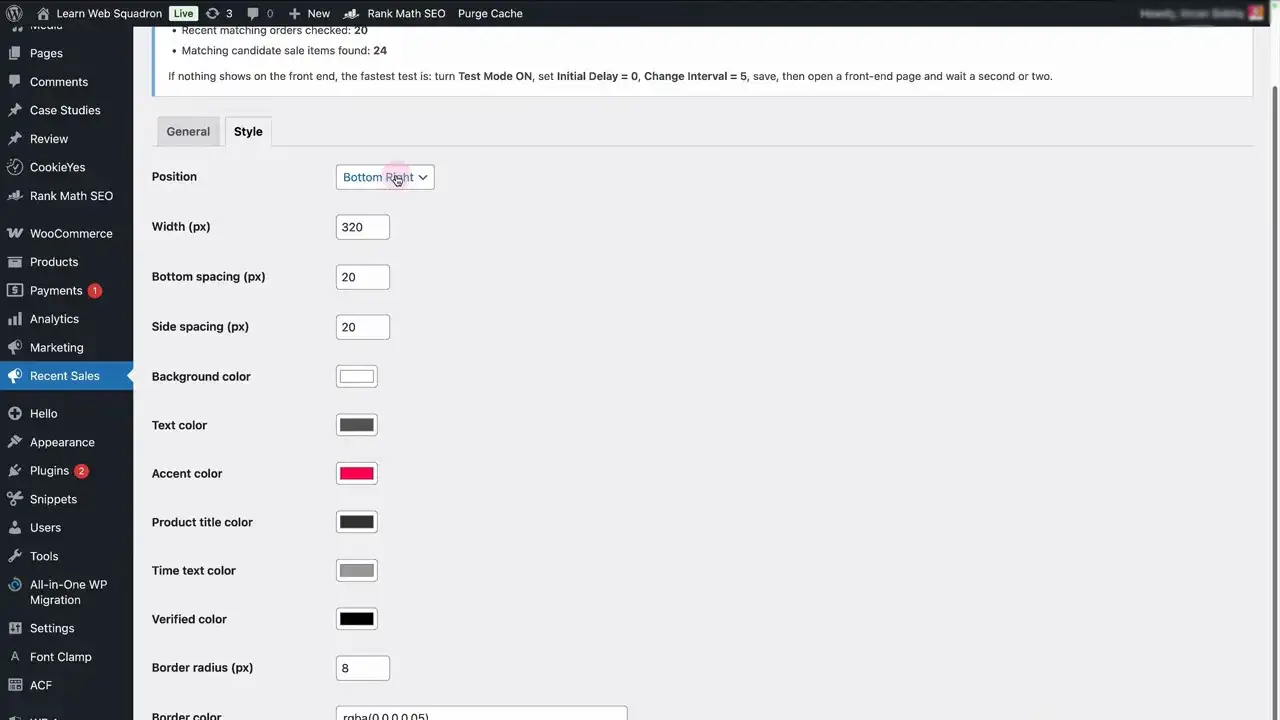
- Maintain total control over styling, including spacing and brand colors.
The Blueprint: Adding the Popup Step-by-Step 🛠️
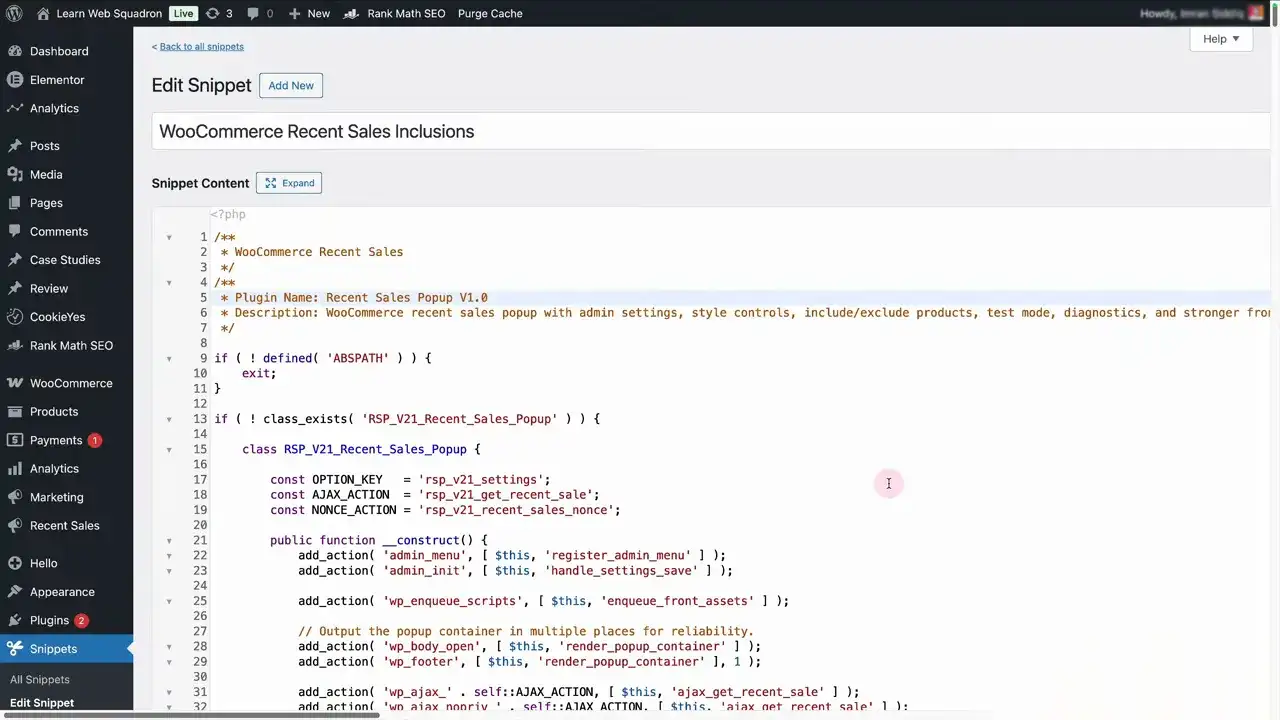
1. Import Your Snippet
First, download your snippet file and import it into Code Snippets Pro. Using a snippet manager keeps the feature lightweight. Consequently, the logic is handled within your existing architecture rather than by an external overhead.
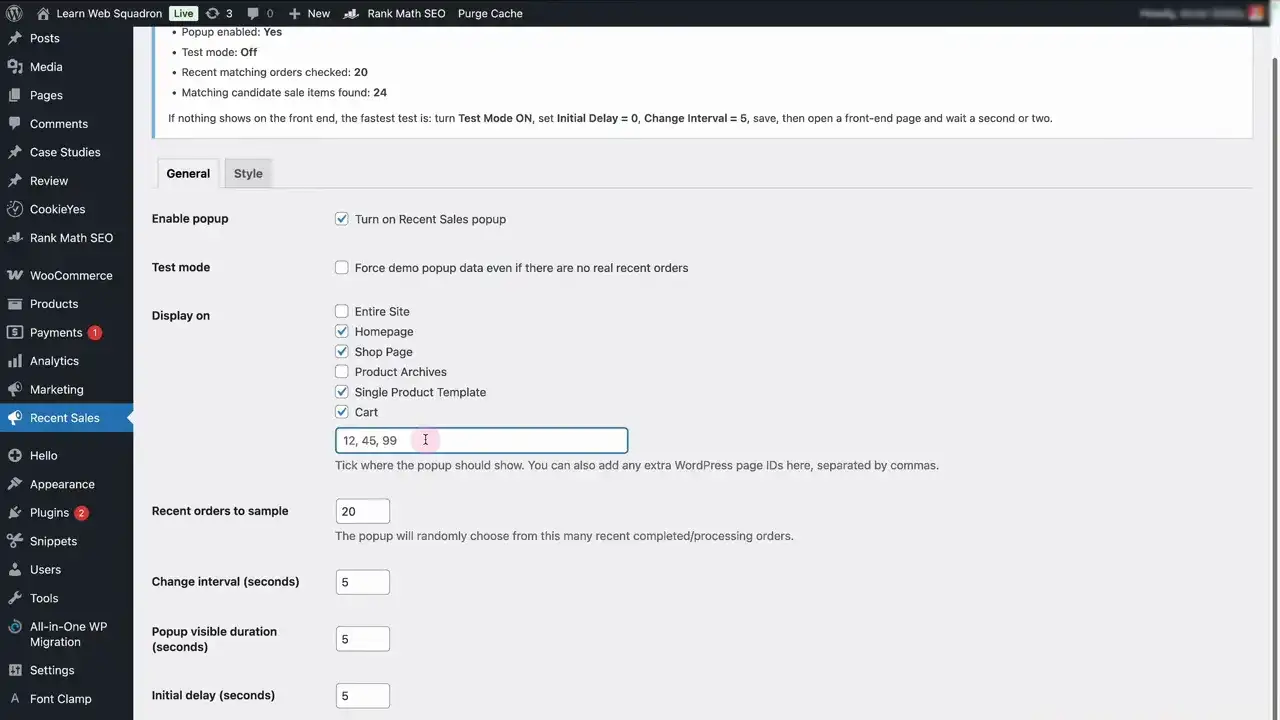
2. Define Your Display Locations
You do not have to show notifications across your entire site. Specifically, you can limit the popup to high-intent areas like:
- The Shop Page: Where users are actively browsing.
- Single Product Templates: To provide that final nudge toward a purchase.
- Specific Page IDs: Perfect for custom landing pages or seasonal promotions.
3. Set Your Timing and Intervals ⏱️
Timing is the most critical factor for a positive user experience. Therefore, we recommend setting an initial delay. Giving your visitors a few seconds to breathe before the first popup appears ensures they focus on your main value proposition first.
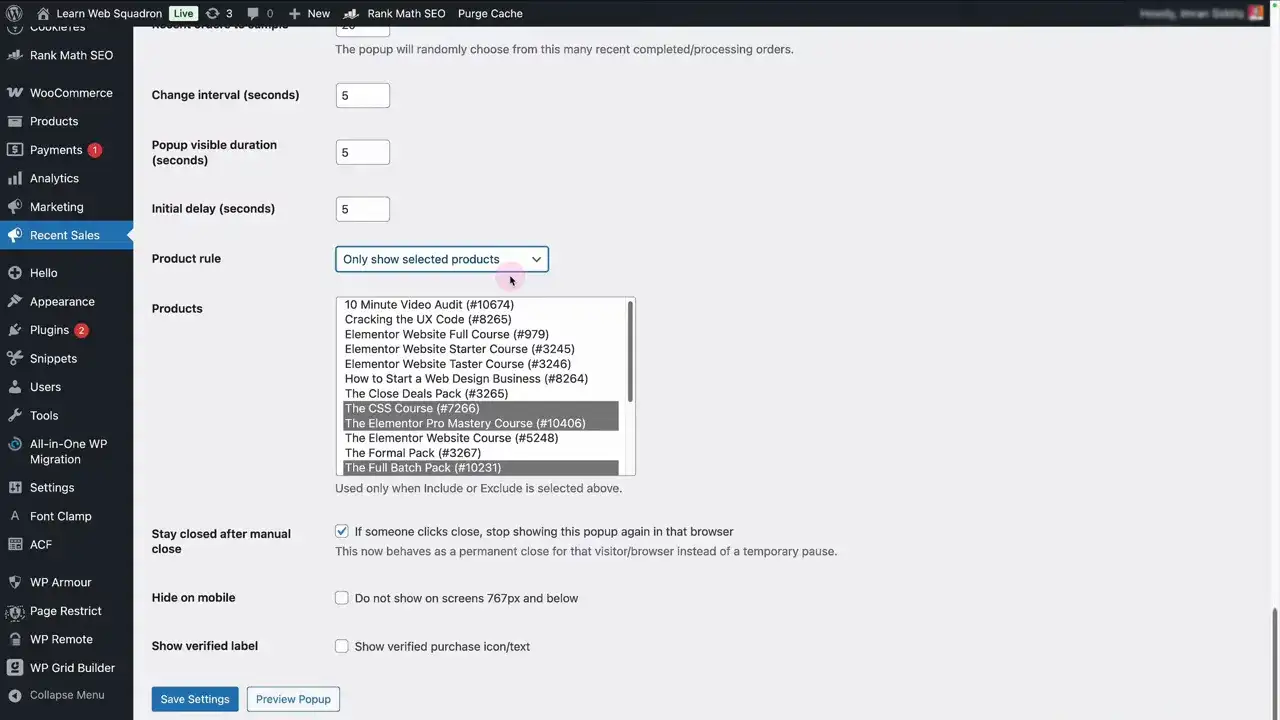
4. Curate Your Product Selection
A sophisticated setup allows for flexible product scoping. Instead of an “all-or-nothing” approach, you can choose to:
- Show All Products: Best for focused catalogs.
- Include Only Selected Items: Ideal for pushing high-margin top sellers.
- Exclude Specific Products: Use this to hide low-priority or out-of-stock items.
5. Respect the Dismissal Logic 🔐
One of the most important usability details is the “close” behavior. If a visitor dismisses a popup, it should stay closed for the duration of their session. Specifically, this prevents the feature from becoming intrusive or annoying.
Best Practices for Social Proof 📈
To get the most out of your WooCommerce sales popup, follow these architectural principles:
- Don’t Rush the Load: Use a 5-10 second delay.
- Keep it Brief: Display the notification for only 4-6 seconds.
- Space it Out: Leave a significant interval between different notifications.
- Stay Subtle: Position the popup in the bottom left or right to avoid blocking the main content.
Final Takeaway 💎
Architecting a recent sales popup shouldn’t require a heavyweight third-party app. By using a clean code snippet, you gain all the benefits of social proof with none of the bloat. Focus on the details timing, placement, and product choice to ensure your popup supports a premium shopping experience.
Ready to build? Import the snippet and start testing your display logic today. 🚀

Huge thanks to Imran Siddiq - Web Squadron for architecting this tutorial!
❓FAQ: WooCommerce Recent Sales Popup
Can I limit the popup to certain pages?
🛠️ Yes. You can restrict the visibility to the shop, product pages, or specific IDs within the snippet settings.
Will this slow down my site?
🏎️💨 No. Because this is a code snippet rather than a full plugin, the impact on your site’s performance is negligible.
Can I customize the colors to match my brand?
🎨 Absolutely. The snippet allows you to adjust colors, width, and spacing to ensure it feels like a native part of your design
Do I need a separate plugin for this?
❌ No. By using the Code Snippets Pro ecosystem, you can manage this feature alongside all your other site logic in one place.