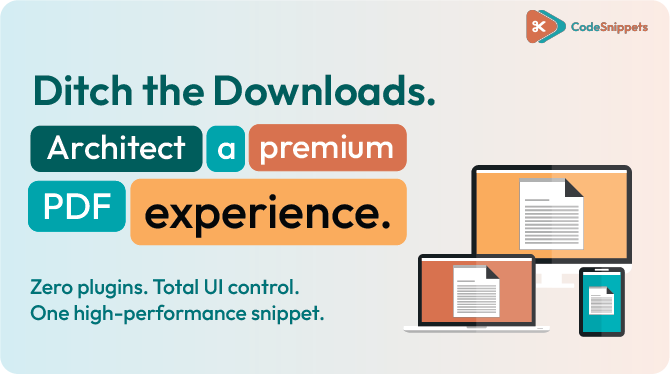
If you want PDFs on your WordPress site that feel like a modern, interactive reader – rather than a clunky download link – you don’t need to buy a bloated plugin. 🛑📉
By using a high-performance PDF Viewer code snippet, you can turn any plain PDF into a premium on-page experience. We’re talking smooth scrolling, thumbnails, dark mode, and full-screen controls that work perfectly across desktop, tablet, and mobile. 🏗️🛡️
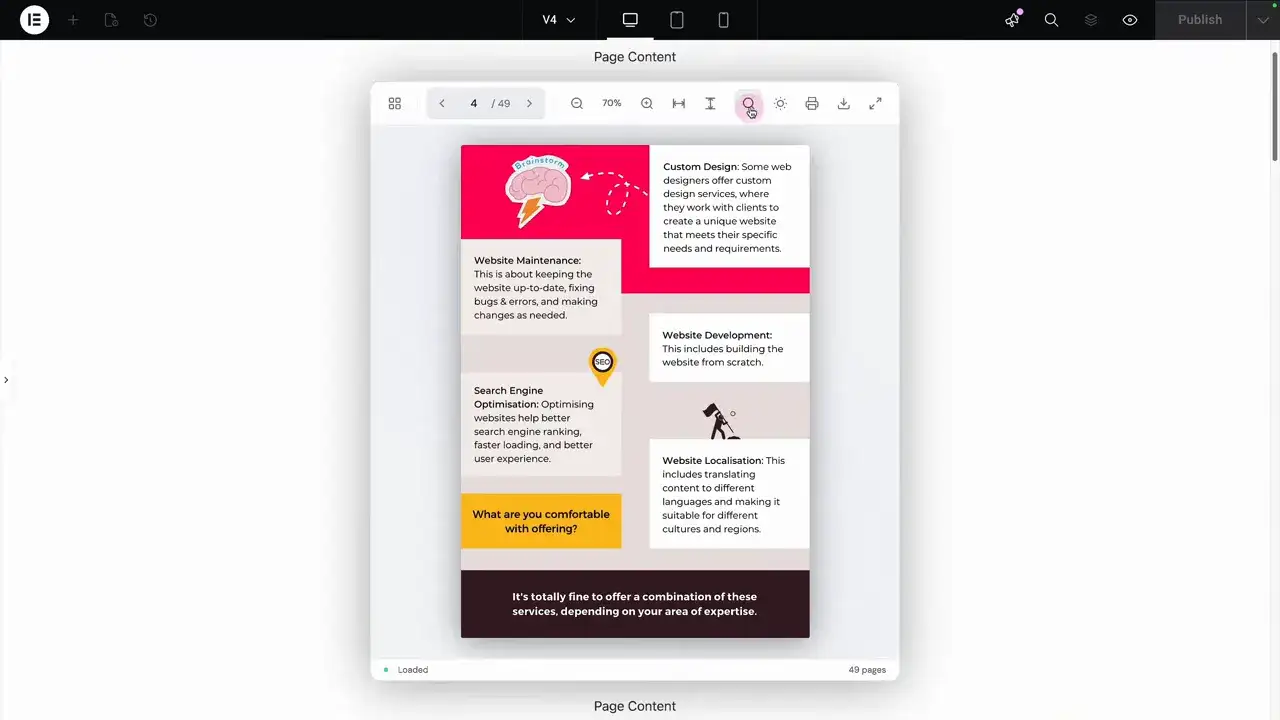
What an “Architected” PDF Viewer Looks Like 🏛️
A professional viewer isn’t just about displaying a file; it’s about giving users the controls they expect from a contemporary document reader:
- Navigation: Smooth page scrolling and thumbnail toggles. 📝
- Precision Zoom: Fit to width, fit to height, and manual zoom. 🔍
- Search & Utility: Search inside the document, print, or download. 🖨️
- Responsive Logic: A layout that adapts to mobile, with swipeable controls for smaller screens. 📱
- Dark Mode: A native dark mode toggle for better readability. 🌙
How it Works: One Snippet, One Shortcode 💎📦
This viewer is built on pure logic. Once the snippet is active, you don’t have to struggle with complex page builder settings. Instead, you get a clean Shortcode that works anywhere.
- Activate the Snippet: Paste the code into your library and set it to run. 🛡️
- Configure Your PDF: Add your media URL in the PDF Viewer interface to generate your unique shortcode.
- Drop & Render: Paste the shortcode into an Elementor Shortcode widget or any Gutenberg block. Done. 🏎️💨
Make it Match Your Brand 🎨✨
The “New Way” of building means total control over the UI. You can customize the viewer to blend seamlessly with your site’s design:
- Device-Specific Dimensions: Set different heights for desktop, tablet, and mobile to ensure the perfect fit.
- Feature Visibility: Want to prevent downloads? You can disable the download button with a single toggle. You can even hide specific controls on mobile to keep the UI clean. 🛡️
- Color Themes: Choose between light and dark modes or pick a custom accent color to match your branding. 🌈
- Typography: Adjust body and display fonts directly within the viewer settings.
Zero Rebuilds: The Import Logic 🔄
Most people fear that logging out means losing their configuration. Not here.
If you need to update a viewer later, simply copy your existing shortcode and use the “Import Existing Shortcode” feature. It instantly restores your height settings, URLs, and feature visibility so you can make quick tweaks without starting from scratch. 🛠️✅
The Bottom Line 🎯
Stop settling for “attachments.” Architect a professional document experience that keeps users on your site and under your brand control. 🚀💎
Ready to upgrade your PDFs? Get the snippet and start building today.

Huge thanks to Imran Siddiq - Web Squadron for architecting this tutorial!
❓FAQ: PDF viewer
Does this PDF viewer work on mobile?
Yes. The viewer is fully responsive. On smaller screens, the top control bar becomes a scrollable area, ensuring all tools remain accessible.
Can I hide the download button?
Absolutely. The feature visibility settings allow you to disable printing, downloading, or any other control to keep your content protected.
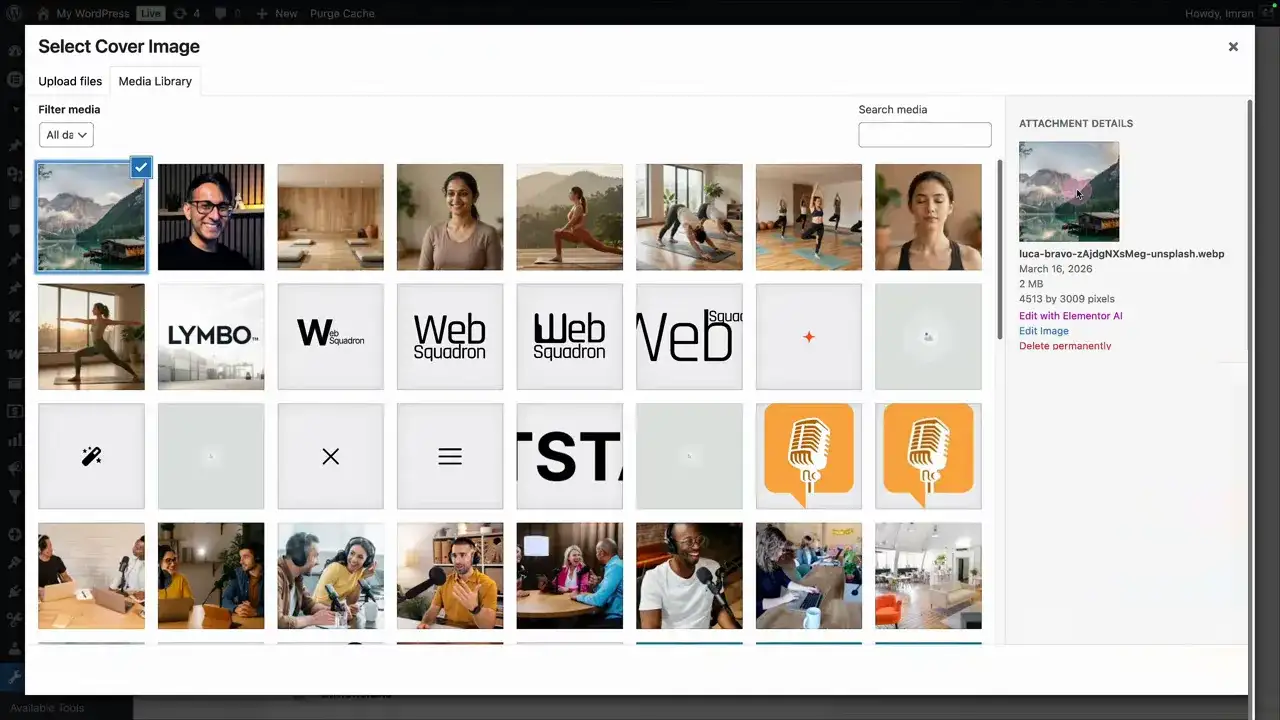
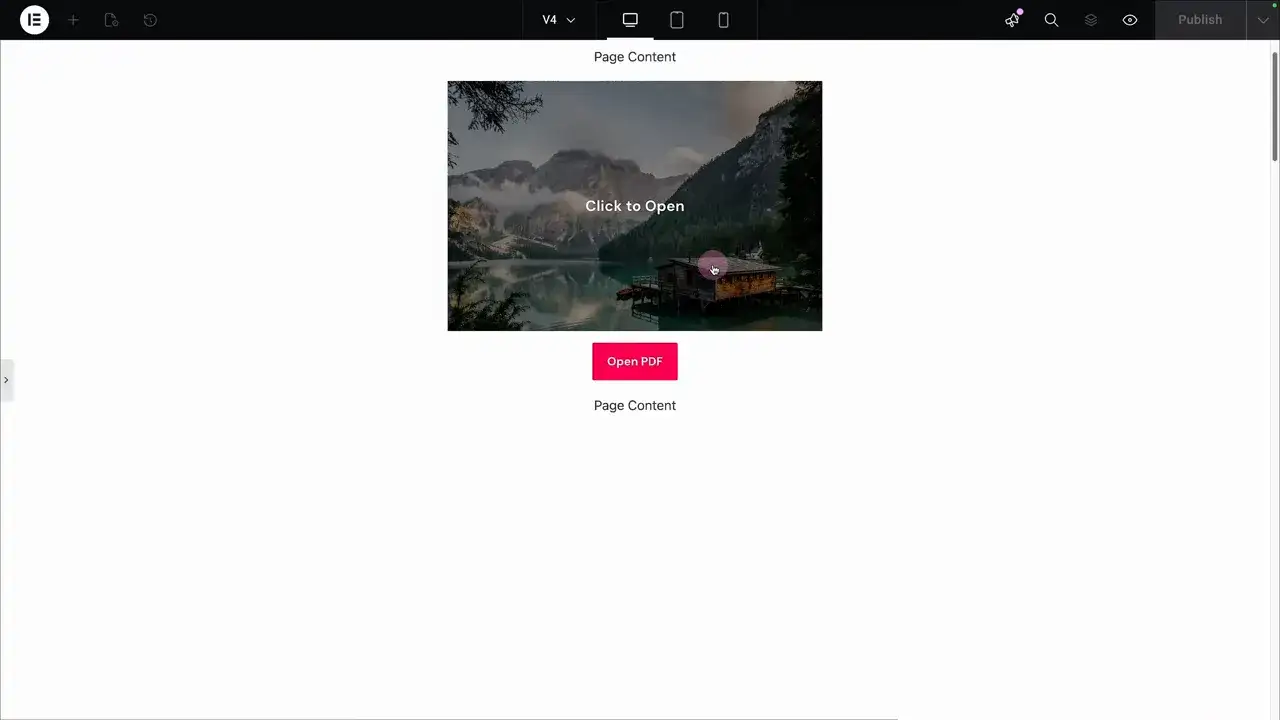
Can I show a cover image before the PDF loads?
Yes. You can set a custom cover image and height, and choose between a “Click to Open” button or a full-image hover overlay.
Will I lose my settings if I edit the page later?
No. By using the “Import Existing Shortcode” option, you can restore all previous configurations (URLs, fonts, dimensions) in seconds.
Do I need a specific page builder?
No. Because it’s shortcode-based, it works perfectly in Elementor, Gutenberg, Bricks, or any builder that supports shortcode/code widgets.