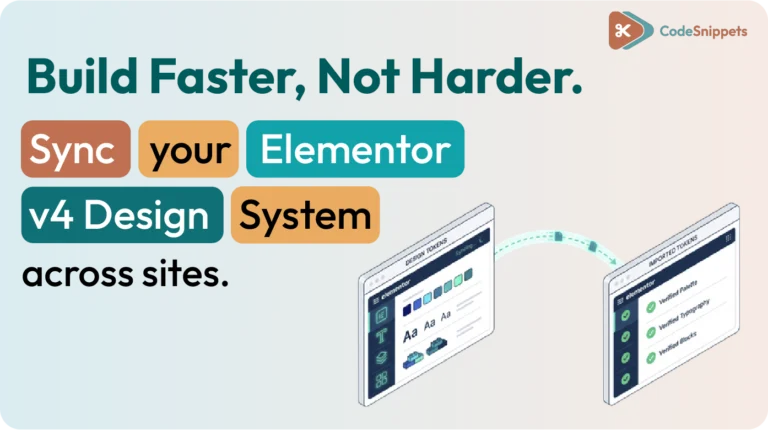
Moving a design system from one WordPress site to another saves hours of setup. Elementor version 4 introduced a dedicated tool for global variables and classes, allowing you to reuse colors, typography rules, and utility classes across projects instantly. ?️
What This Process Transfers
This workflow is strictly for design tokens and class definitions. It does not move pages, plugins, or core WordPress settings. It is the ideal solution for:
- Agencies: Creating a consistent design language across client sites. ?
- Developers: Deploying a “Blueprint” (global colors, font clamp formulas, utility classes). ?
- Rebuilders: Migrating established variables to a fresh installation. ?
Key Concepts Before You Start
- Variables: Global tokens (colors, spacing, font sizes) used by widgets.
- Classes: Reusable style rules defined in the Elementor Class Manager.
- Blueprint: A pre-built JSON export used as a standardized starting point.
- Regenerate CSS: A mandatory post-import step to compile styles for the front end. ⚡
Step-by-Step: Exporting the Source
- Log in to your source WordPress dashboard.
- Navigate to Elementor > Tools and find the Elementor v4 Export option.
- Name your export descriptively (e.g., “Agency-Base-Styles-2026”) and download the JSON file. ?
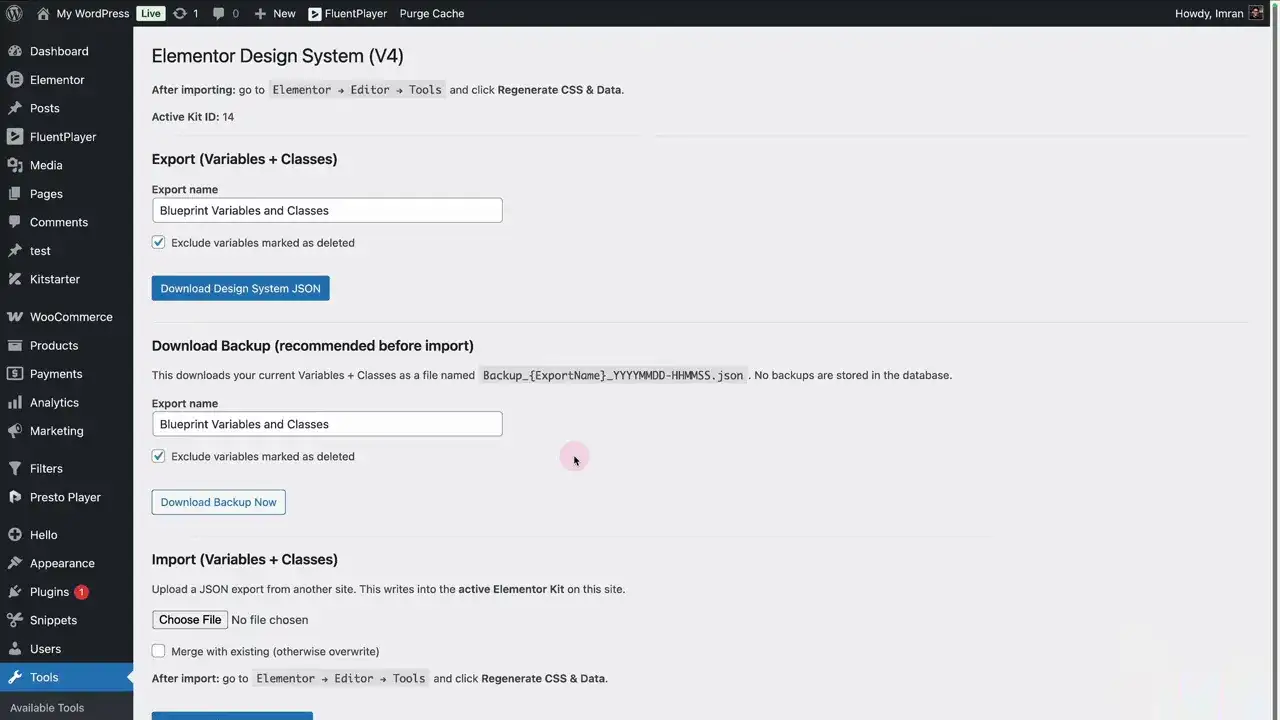
Step-by-Step: Importing to the Destination
- Open the destination site’s dashboard and go to the Elementor v4 Import section.
- Upload your JSON file.
- Choose your conflict resolution:
- Merge: Adds new items while attempting to preserve existing ones.
- Overwrite: Replaces existing variables and classes with the same ID. ⚠️
- Click Import and wait for the confirmation.
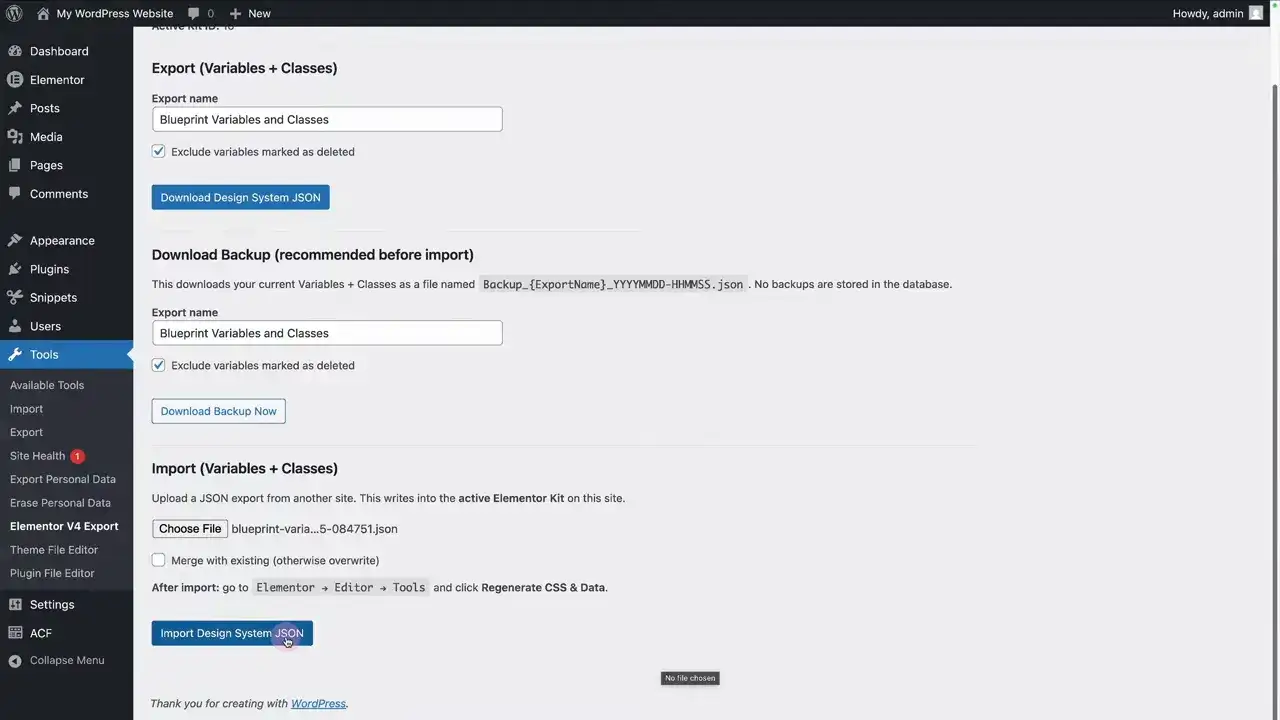
Mandatory: The “CSS Sync” ?
After importing, you must go to Elementor > Tools > General and click Regenerate CSS & Data. Clear your site, server, and CDN caches. Without this, your imported variables may not render correctly in the browser.
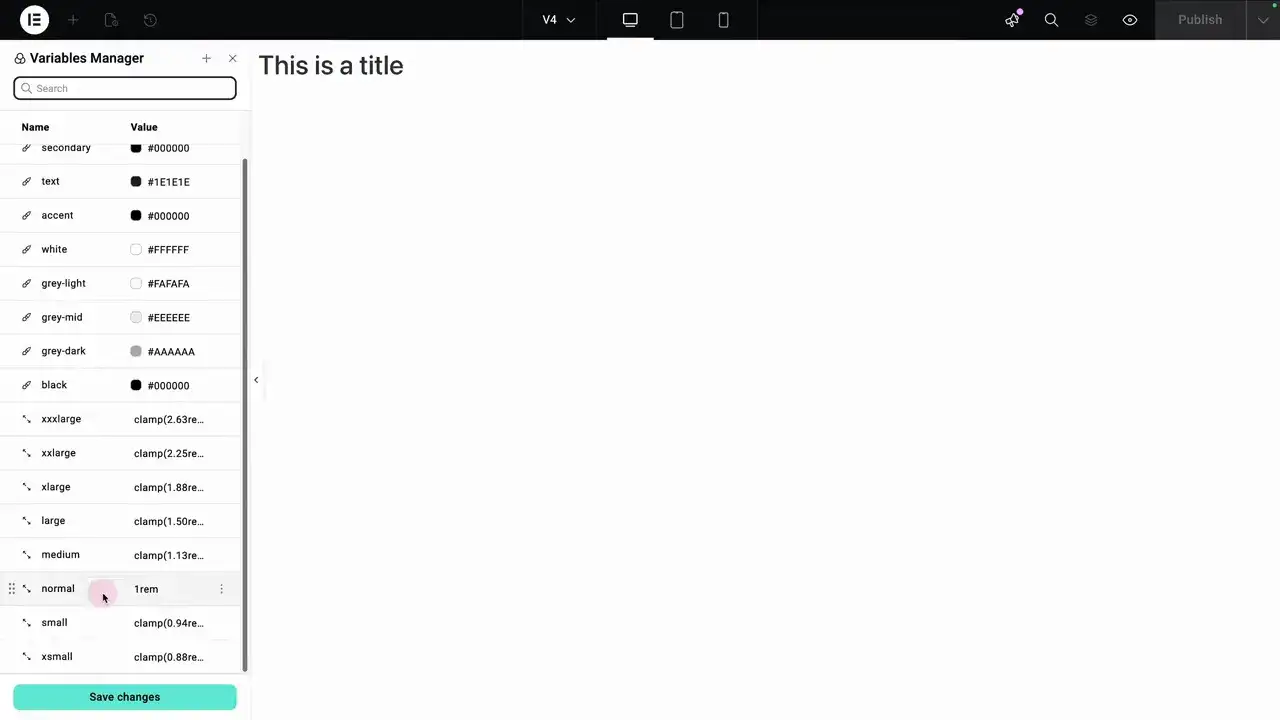
Using a Ready-Made Blueprint ?
A blueprint provides an instant typography scaling system (like fluid font clamp formulas) and a professional color palette. This standardizes your workflow across teams and ensures predictable class names on every build. ??
Common Pitfalls to Avoid ?
- Naming Collisions: If both sites use the same variable name but different values, a “Merge” can cause unexpected shifts.
- Dependency Gaps: Classes may rely on specific custom CSS or widgets not included in the JSON.
- Version Mismatch: Ensure both sites are running Elementor v4 or later to avoid data corruption.